
Contents
- Module features
- Before setup
- Connect and configure the module
- Calculate delivery in an order
- Create and track a shipment
- International shipments
- Limitations
The Envia.com module integrates the Envia.com shipping aggregator with Simla. You can calculate delivery rates and create shipments without leaving the order.
Module features
The module provides the following features:
- connection to an Envia.com test or production account using an API token;
- separate carrier and service settings for each CRM warehouse;
- delivery-rate calculation based on the route, addresses, package weight and dimensions, and carrier requirements;
- delivery price and estimated time displayed in the order;
- support for services that require an origin drop-off location, a destination pickup point, or both;
- shipment creation and cancellation;
- printable PDF labels and tracking numbers;
- delivery-status updates in Simla.
Before setup
To connect and use the module, prepare the following:
- an Envia.com test or production account and its API token;
- the sender's name and phone number;
- at least one active CRM warehouse with a complete address;
- the weight, length, width, and height of the packages you plan to send.
Create the API token in your Envia.com account under Developers → API Access. For Test mode, create the token in the test account; for production, create it in the production account. Tokens created for different environments are not interchangeable.
Check the warehouse address under Settings → Products and inventory → Warehouses. The country, state or region, city, street, building number, and postal code must be filled in. The module uses this address as the shipment origin.
Note
The carriers and services available for a warehouse depend on its country.
Connect and configure the module
- Install Envia.com from the Marketplace.
- Open Settings → Integration → Envia.com Module.
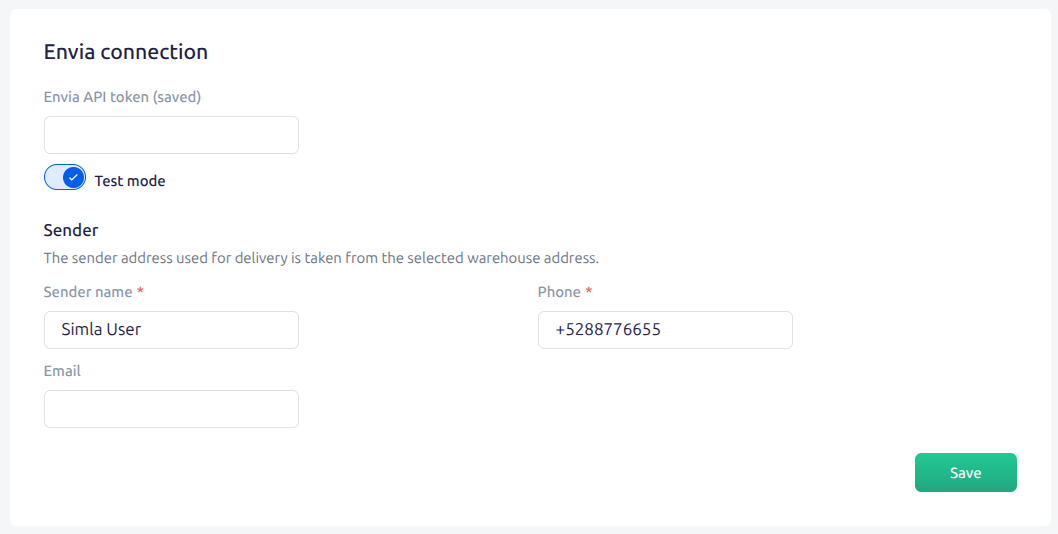
- Enter the Envia.com API token. Enable Test mode if the token belongs to a test account, or leave it disabled for a production account.
- Save the connection settings. The module verifies the token and then loads the available carriers and services.
- Enter the sender's name and phone number. Add an email address if needed. A sender email is required when you create an international shipment.
- In the warehouse settings in Simla, check that the warehouse address contains all the fields listed in Before setup.
- Return to the module settings, select a CRM warehouse, and click Add warehouse.
- Click Configure next to the added warehouse. Add at least one required carrier and service pair, and save the settings.
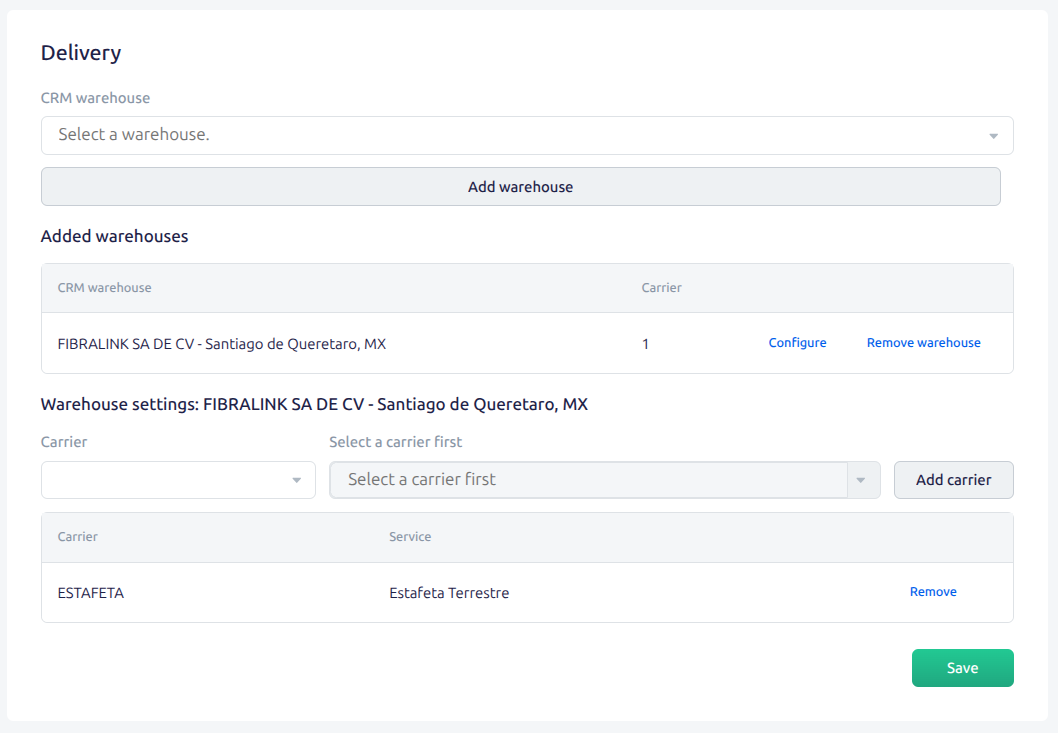
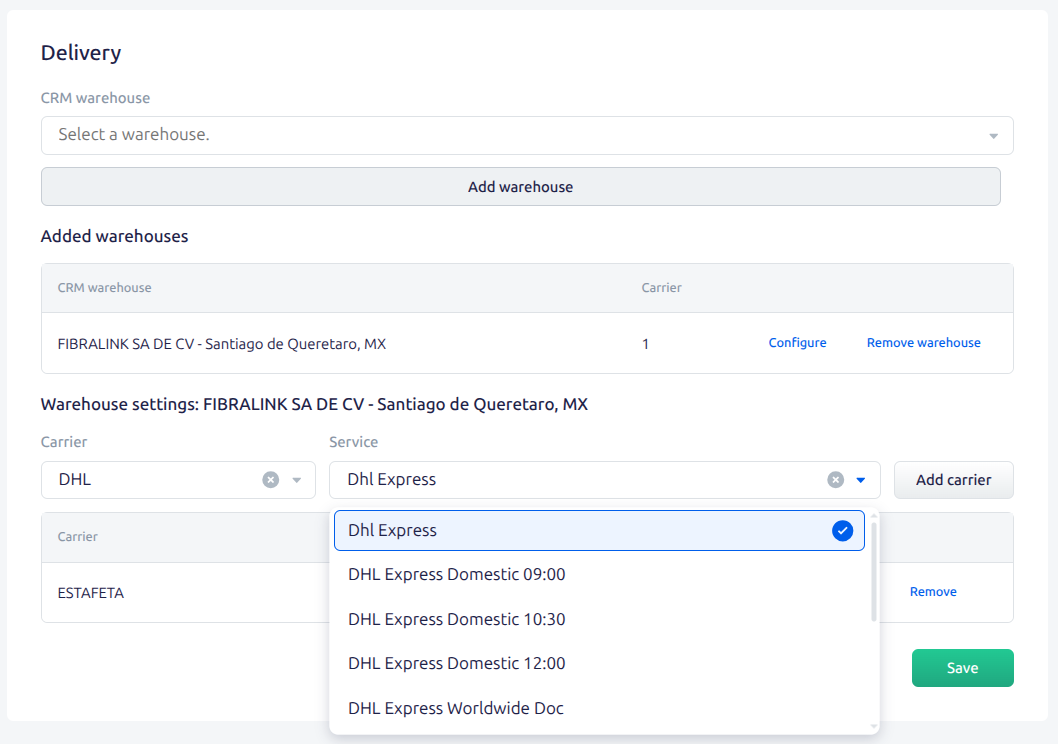
If you use multiple warehouses, add and configure each warehouse separately. Every added warehouse must have at least one carrier with at least one selected service.
Calculate delivery in an order
- Open the delivery details in an order and select Envia.com as the delivery service.
- Select a configured CRM warehouse.
- Check the recipient's phone number and delivery address.
- Enter the package weight, length, width, and height.
- Request delivery rates.
- If the selected service requires an origin drop-off location or a destination pickup point, select the required location.
- Select a suitable delivery option.
Simla displays the price and estimated delivery time for each available option. Envia.com determines the actual availability based on the route, addresses, package parameters, terminals, and the carrier's conditions.
If one carrier rejects the request, the module shows the reason for that option and continues calculating rates for the other configured carriers.
Note
The module does not convert currencies. If Envia.com returns a price in a currency different from the order currency, the option is shown as unavailable together with the mismatch reason.
Create and track a shipment
After selecting an available rate, save the delivery. The module creates the shipment in Envia.com and adds its tracking number, current status, cost, and printable label to Simla.
You can print saved labels as PDF files. If a delivery contains several packages, their labels are combined into one PDF.
Tracking changes received from Envia.com are reflected in the delivery status in Simla.
If you delete an open delivery request, the module cancels the corresponding open shipment in Envia.com. A shipment that has already reached a final status cannot be cancelled.
International shipments
For a shipment between different countries, prepare the following data before saving the delivery:
- phone numbers and email addresses for both the sender and the recipient;
- customs items in every package;
- an HS code for every product item;
- a country of manufacture or country of origin for every product item;
- a positive declared value for every product item.
The module reads the HS code from an offer property named HS Code or HS. Spaces, punctuation, and letter case in the property name or code do not affect matching.
For the country, use an offer property named Country of manufacture, Country of origin, Origin country, Страна производства, or Страна происхождения.
Note
A delivery rate can be calculated before all contact details are filled in, but the international shipment is not created without both sender and recipient email addresses and the required customs data.
Limitations
- Cash on delivery is not supported in the current module version.
- A standard product code is not treated as an HS code for an international shipment.
- Envia.com determines which rates are available for the order details and carrier requirements.
- Rates returned in a currency different from the order currency cannot be selected because the module does not convert currencies.
- A shipment in a final status cannot be cancelled.