
Contents
- Sending a template from an order card
- Sending a template from a customer card
- Sending a template from Chats
Let’s look at how to work with chat templates using the example of WhatsApp Business integration.
Chat templates can be sent using triggers. Read more about triggers in the related section.
Note
A template may not be delivered when sent to a foreign phone number. To resolve this, adjust the To field in the chat template according to the instructions.
Sending a template from an order card
When the system receives a new order, it contains contact information including the phone number to which the WhatsApp application is bound.
If you need to contact the customer via WhatsApp, click on the “Send Template” button in the “Communications” block. A PopUp window will open where you can select a message template and a phone number to which the message will be sent.
Important!
Sending a template from a customer card
Sending a template from a customer card works in the same way. In the “Chats” tab, select the template that will be sent to the customer.
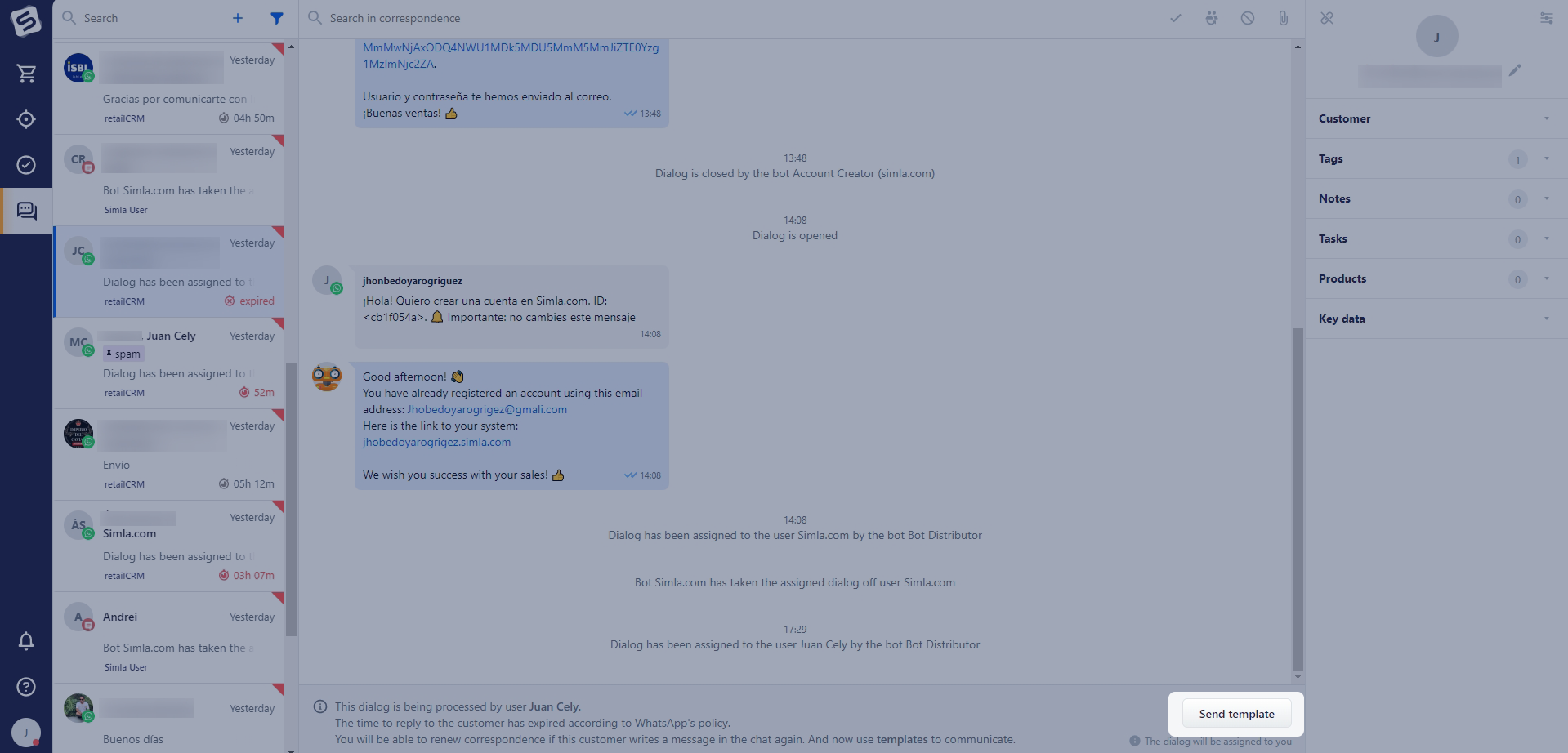
With WhatsApp Business, the customer service window remains open for 24 hours after the customer’s last message. Each new customer message resets the window for another 24 hours. Once it closes, the business must send a template message to resume communication. A new customer message opens the service window again.
Note
Sending a template from Chats
Sending templates from Chats becomes available when the 24 hour dialog box expires. You can select the required template by clicking on the “Send Template” button.
The customer should be saved in the system. If the customer was not saved at the time of sending, it will be saved automatically.