
Configuring the "Analytics on customers" section In a single filter, you can configure the date for which analytical data for a specific store or for all stores created in the system will be displayed. false W3sidGl0bGUiOiJBbmFseXRpY3MiLCJ1cmwiOiIvdXNlcnMvYW5hbHl0aWNzLyJ9LHsidGl0bGUiOiJBbmFseXRpY3MgYnkgY3VzdG9tZXJzIiwidXJsIjoiL3VzZXJzL2FuYWx5dGljcy9jdXN0b21lci1hbmFseXRpY3MvIn1d Analytics /users/analytics/ ["users","Analytics"] ["users","Analytics","Analytics by customers"] users

Configuring the "Analytics on customers" section

In a single filter, you can configure the date for which analytical data for a specific store or for all stores created in the system will be displayed.

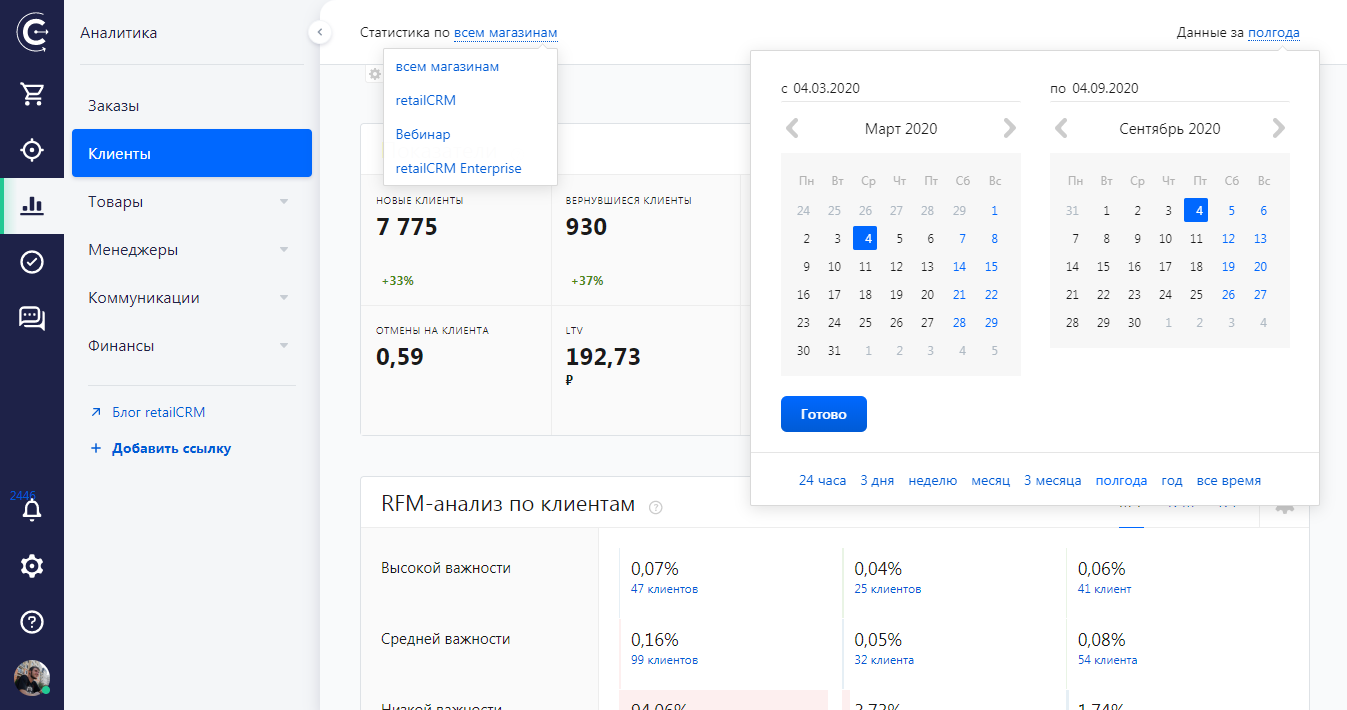
A single filter is attached to the top of the page that affects all the widgets in the section and remains when scrolling through the content. With it you can:

  • collect statistics for all or several selected stores
  • select the time period for which the widget data will be displayed

In the calendar, you can select both a relative date (for example, 24 hours, 3 days, a week, a month, and so on), or set an exact date by selecting the start and end dates.
Configuring the list of widgets

Under the statistics there is a “gear” icon. Upon clicking, a list of basic widgets is displayed, with the option to add new, universal widgets.

Drag the blocks to arrange them in the order you want. If necessary, basic widgets can be deactivated, and added ones can be removed.

Thank you for your feedback.
Was this article helpful?
No
  • The recommendations did not help
  • There is no answer to my question
  • The text is difficult to understand
  • I do not like the described functionality
Yes
Next article
"Indicators" widget
This report includes key indicators showing activity and changes in the customer base.