
Chats in the customer and order card Links to dialogues with the customer are displayed in both the customer and order cards. false W3sidGl0bGUiOiJDaGF0cyIsInVybCI6Ii91c2Vycy9jaGF0cy8ifSx7InRpdGxlIjoiQ2hhdCBmdW5jdGlvbmFsaXR5IiwidXJsIjoiL3VzZXJzL2NoYXRzL2NoYXQtZnVuY3Rpb25hbGl0eS8ifSx7InRpdGxlIjoiV29ya2luZyB3aXRoIGNoYXRzIiwidXJsIjoiL3VzZXJzL2NoYXRzL2NoYXQtZnVuY3Rpb25hbGl0eS93b3JraW5nLXdpdGgtY2hhdHMvIn1d Chats /users/chats/ ["users","Chats"] ["users","Chats","Chat functionality"] users

Chats in the customer and order card

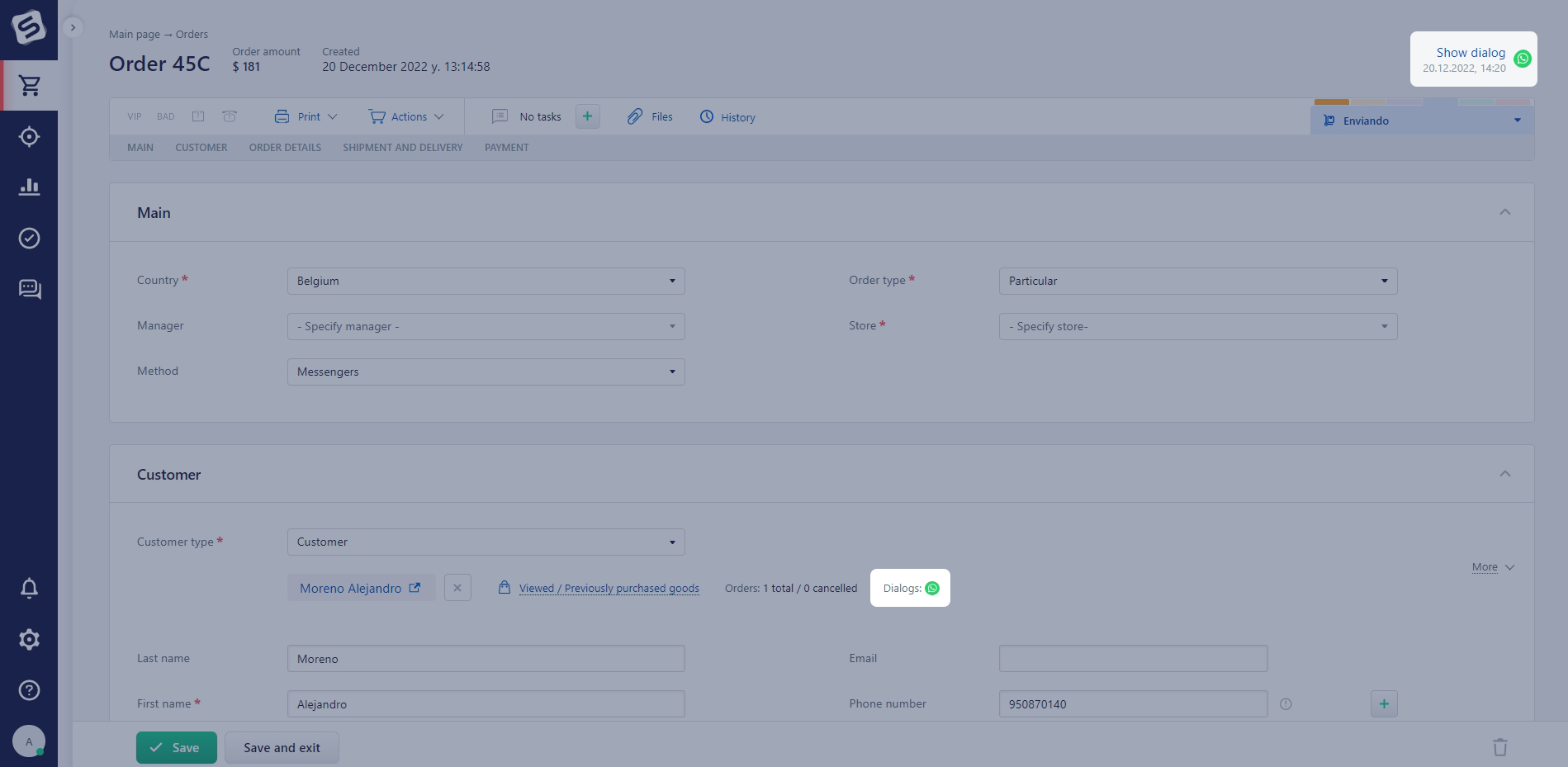
Links to dialogues with the customer are displayed in both the customer and order cards.

Dialogues with customers can be viewed in their individual order or customer cards, in the “Chats” tab in the “Previous interactions” block. The tab also shows the start date of the dialogue, status, total number of messages, and the channel (from which messenger the customer wrote).

For more information about the “Previous interactions” block, read the corresponding article.

In orders created from a chat, there will be a link to the chat in which the order was created. The “Buyer” block displays the icons of the messengers via which communications with the customer took place. Clicking on the messenger icon opens the corresponding chat dialogue.
Thank you for your feedback.
Was this article helpful?
No
  • The recommendations did not help
  • There is no answer to my question
  • The text is difficult to understand
  • I do not like the described functionality
Yes
Previous article
Working with widgets in the chat window
Widgets are available for quick access from the chat window to the client's data, which can be customized for yourself.