
Contents
- How to connect the WhatsApp QR module?
- What may cause messages not to enter the system?
- What is the difference between WhatsApp QR and WhatsApp Business?
How to connect the WhatsApp QR module?
To connect the module go to the marketplace of the system, find the “WhatsApp QR” module, click on it and click the “Connect” button in the window that opens.
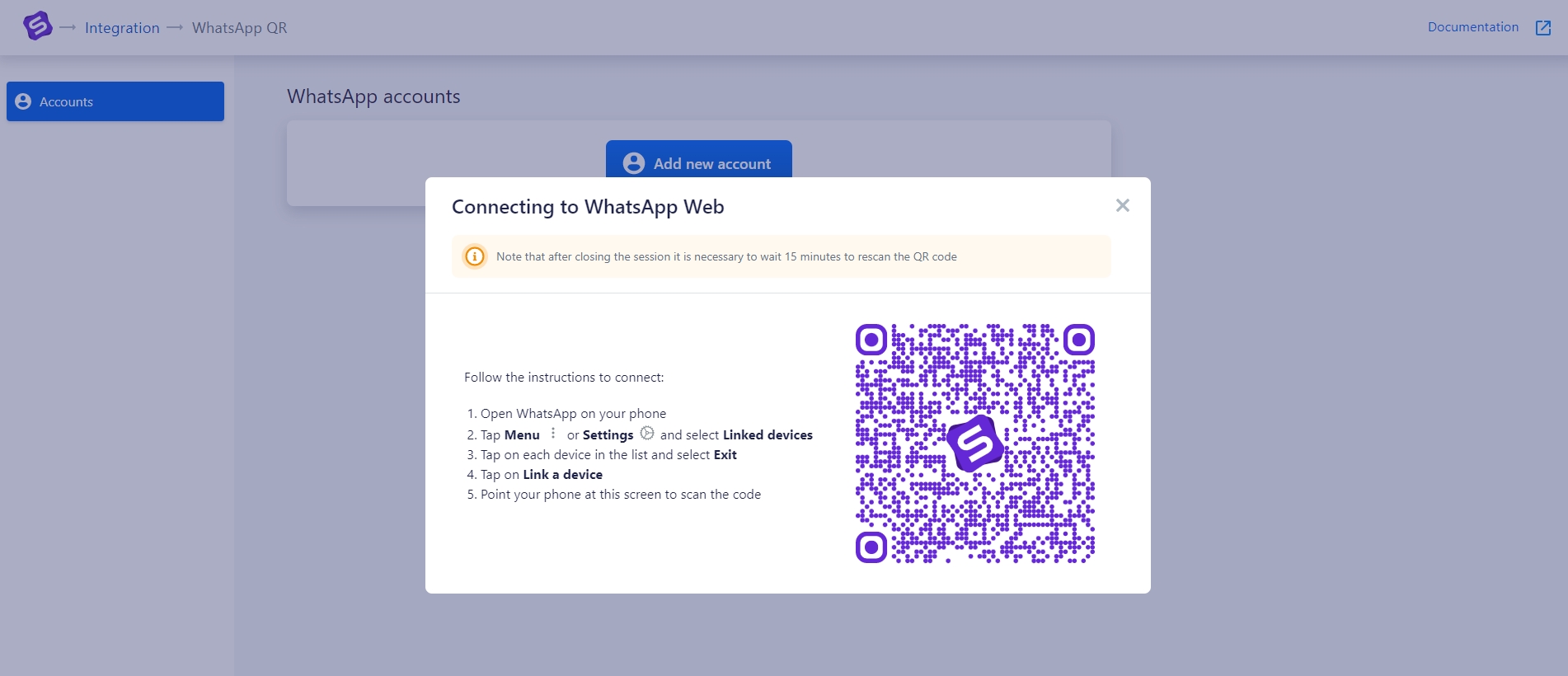
Next, click on the “Add a new account” button. A QR code will be generated from the module side.
The code should be scanned using the WhatsApp application to connect the account with the messenger servers. To do this, go to Settings (3 dots in the upper right corner on Android) in the mobile application, next go to “Linked devices” and then click on the “Link device” button. A camera will open with which you need to scan the generated code.
Connection completed.
You can rename the channel to distinguish conversations when using several WhatsApp connections. Click the pencil icon to change the name.
Uploading message history
Uploading history is started by the button in the corresponding column of the table of connections in the module settings.
After pressing the button it will become inactive and the module will start unloading the history. If a checkmark is displayed instead of a button - the history has already been uploaded earlier, re-uploading is possible only by contacting technical support.
Note
Several numbers can be linked to the system. You can do this using the “Add a new account” button.
If you need to delete an existing account click on the “Cross”.
What may cause messages not to enter the system?
The mobile phone acts as a server. At least once every 14 days you should keep the phone connected to the WhatsApp server, that is log into the WhatsApp mobile application with Internet turned on. Otherwise, active sessions will be closed and, accordingly, messages will not be received by the system. To restore the connection, you need to scan the QR code again in the module settings.
If scanning the QR code again does not restore the channel, check the notification and next steps in WhatsApp module error notifications.
Find more about working with chat in the corresponding article.
What is the difference between WhatsApp QR and WhatsApp Business?
WhatsApp QR is a connection that establishes a connection with a mobile phone on the principle of the desktop version of WhatsApp Web using a generated QR code.
You can initiate a conversation with a customer using triggers.
The advantages include:
- Easy connection
- Relevant for companies that cannot be verified on Facebook due to the type of activity.
The disadvantages include:
- No personalized template messages;
- Unstable connection which directly depends on the mobile phone.
WhatsApp Business - the official connection of your company to WhatsApp.
The advantages include:
- Personalized template messages that can be massively sent using triggers;
- Initiation of dialog with a customer;
- Stable connection without breaks.
The disadvantages include:
- Complicated and lengthy company verification procedure.
The integrations also use different pricing models. With WhatsApp QR, you only pay for the numbers connected to the module. With WhatsApp Business, template messages are charged in addition to connected numbers. From October 1, 2026, delivered Service/Support messages are also charged after the free monthly allowance has been used. Each number includes 1,000 free delivered Service/Support messages per month. In Simla, chargeable messages use Meta’s official rates with a 10% markup. Read more in the WhatsApp Business API pricing article.