
Important!
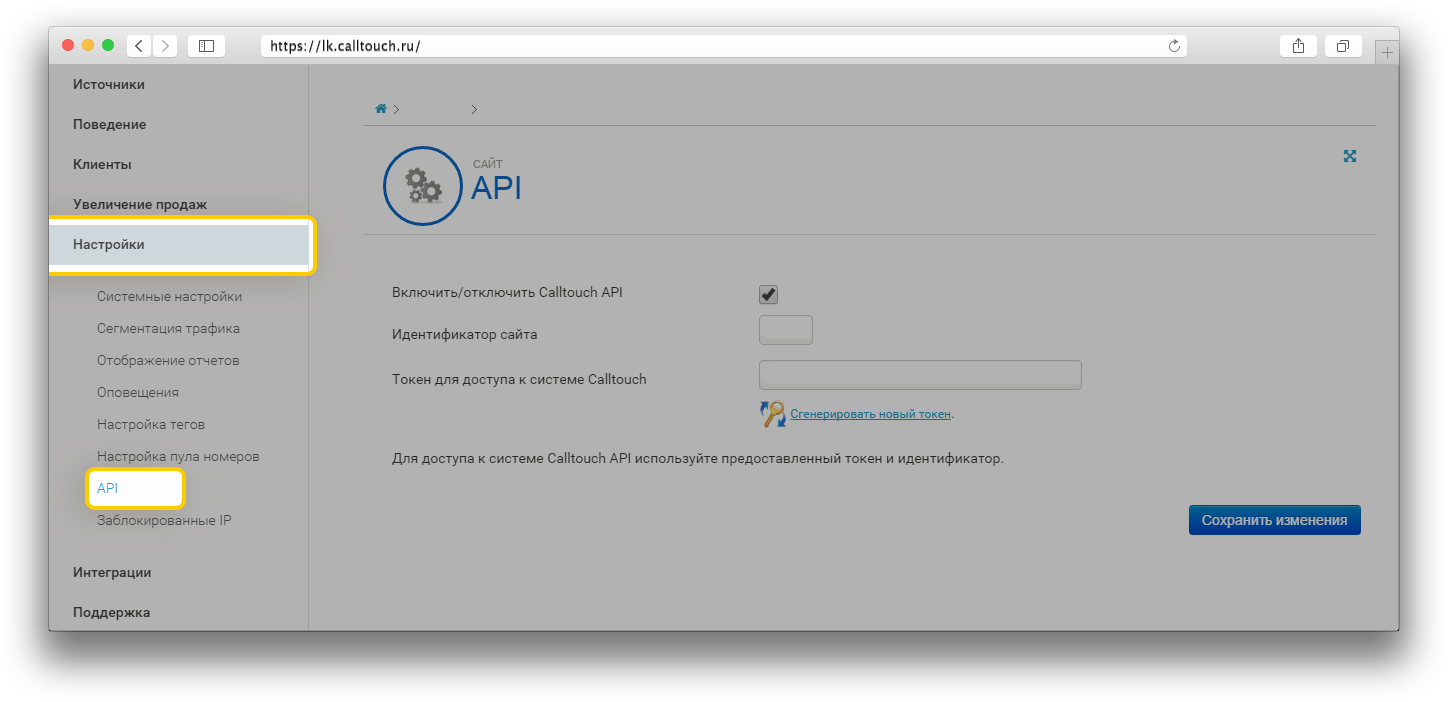
To configure the integration with CallTouch, go to the “Integration” section and select “CallTouch” module. A window will open showing a brief description of what the module can do.
In the “API-key” block, click on the “Add key” button. This will link your CRM system account to your CallTouch account.
Note
The “Take into account orders only with the specified order channel” parameter allows you to only transfer data from orders within a specified order channel.
As a result, the traffic source is also displayed for orders received by phone.
All information on phone calls collected by the CallTouch service and entered into the system can be transferred to Google Analytics, allowing you to both assess the effectiveness of advertising, and to segment customers based on their behavioral characteristics on the site. To do this, you need to integrate Universal Analytics with CallTouch (via your CallTouch account).
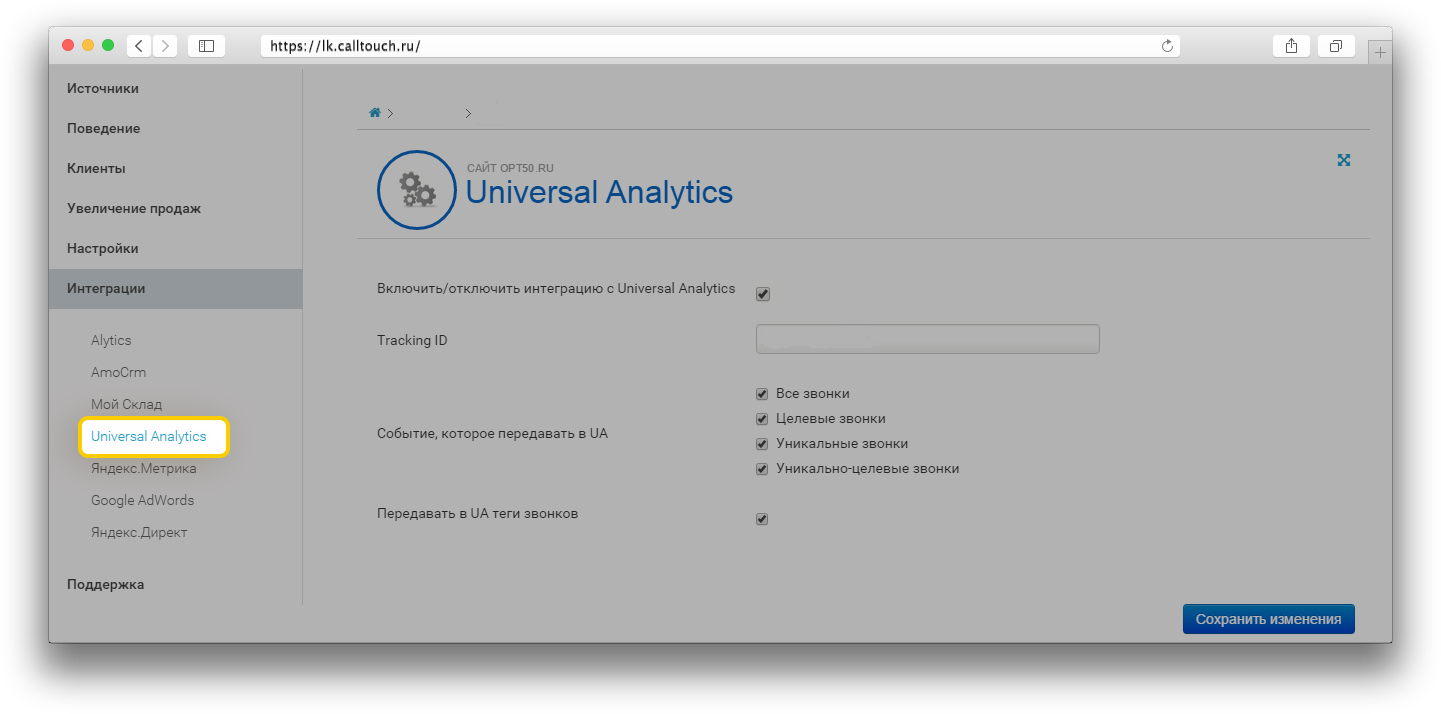
In the Universal Analytics integration settings, select the order channel “By phone” when uploading. For more details on setting up data uploads from the system to Google Analytics, see the article “Uploading data from the system to Google Analytics”. In this case, according to the client_id label received from CallTouch, the customer is determined in the Google Analytics service and the customer’s visits are added to their card.