
Orders can be created in several different ways: from the order list, customer card, during an incoming call, in a dialog (chat) window, and by means of a trigger] and API . First, however, we will show how an order is created in the standard manual way.
Create a new order manually via the order list
Upon clicking the “New order” button on the the order list page, you will be taken to the order creation page. On this page, all the neccessary fields are displayed. If required, a field can be made mandatory by configuring validation. For convenience, fields with a drop-down list of options, such as “Order type” and “Store”, can accept default values that are selected in the settings of data books].
Create an order during a call
If you plan to take orders by phone, you can create them directly from the pop-up window when you recieve a call. In such an order, the phone number field will be filled in automatically.
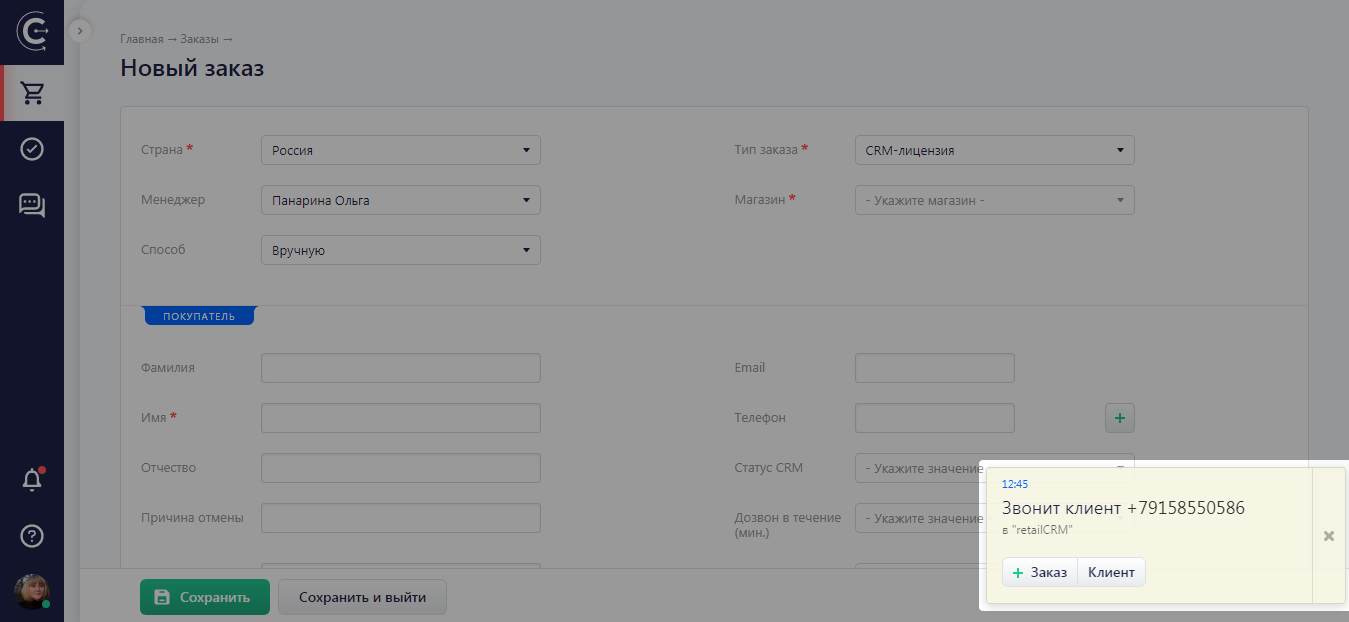
If a customer who is already in the system makes a call, then, after clicking on the full name in the notification, you will be taken to their customer card. From here, you can create a new order. In this case, the data and information regarding the delivery address will automatically be filled in with the values from the customer card.
Create an order from a chat/dialogue window
If you communicate with customers in chats], then it can be very convenient to create orders directly from the dialogue. To do this, in the chat window to the right of the messages, you will see a widget called “Order”. When communicating with a customer, you can use this widget to create an order, add products, select delivery options and place an order. Following this, you can go from the dialogue to the newly created order to the card if you need to configure the order in greater detail.