Contents
- Overview and availability
- Configure the integration
- Add the PayPal payment type
- Work with PayPal in an order
Overview and availability
PayPal is a service for managing online payments.
The PayPal integration lets you create a payment link. When an invoice is paid, the payment status changes automatically in Simla. If necessary, you can also issue a refund from the order. The link can be sent by SMS, email, chat, or another messaging service.
The integration is available if at least one of the following countries is enabled: Spain, Peru, the United States, Chile, the United Kingdom, Mexico, Bolivia, Japan, Germany, Colombia, Ecuador, Argentina, India, Brazil, Portugal, or China.
The PayPal currency must match the currency selected in Simla.
Configure the integration
Prerequisites and API methods
To connect PayPal, you need a verified PayPal account. Complete the required company and bank details. The account can be connected to Simla after the contract has been signed and the account has been activated.
In the API key settings, select the store and enable the following application programming interface (API) methods:
Integration:
/api/integration-modules/{code}/api/integration-modules/{code}/edit
Payments:
/api/payment/(updateInvoice|check)

Connect a PayPal account
In the Simla Marketplace, select PayPal and click Connect. The connection page opens.
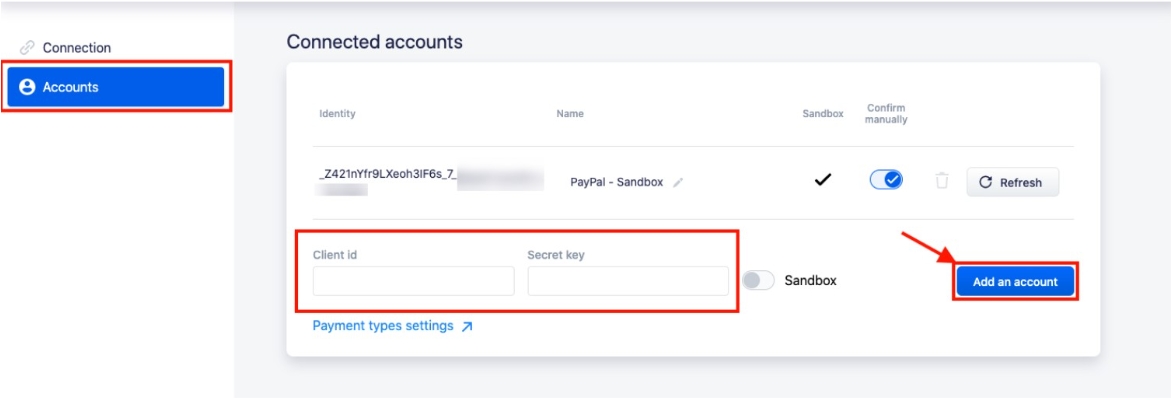
Open the Accounts section and enter the Client ID and Secret Key to add an account.
Note
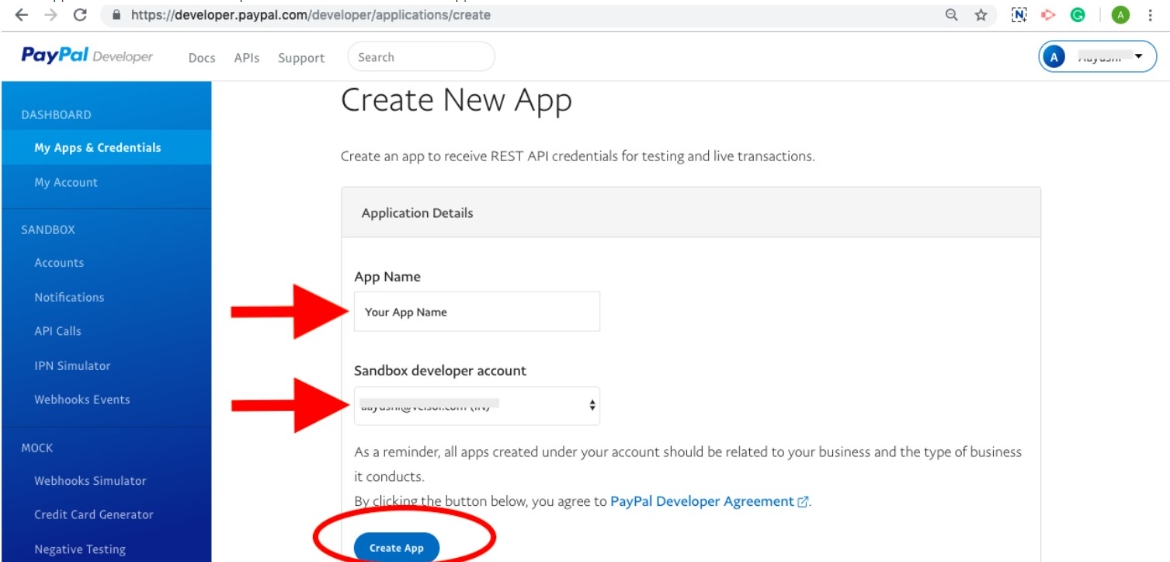
To obtain the Client ID and Secret Key, sign in to PayPal and open My Apps & Credentials → Dashboard. Then click Create App.

Enter the application name, select a Sandbox developer account, and click Create App.
Open the Live tab to view the production Client ID and Secret Key.

After entering the credentials in Simla, click Save. The settings page displays the connected account, store name, and Confirm manually option.
Manual confirmation and environment
The Confirm manually option lets you decide whether to accept or reject each payment from the order. This helps prevent accepting a payment that would then need to be refunded. The control appears below the payment link.
Note
If Confirm manually is disabled, all payments are accepted automatically. To cancel an accepted payment, you must issue a refund.
The Sandbox field is informational and is configured in PayPal. It indicates whether the connected account uses the test or production environment.
Below the connected accounts table, a link opens the payment type settings in Simla.
Add the PayPal payment type
For every store connected in PayPal, Simla automatically creates a payment type with default settings. If necessary, edit it under Settings → Data books → Payment types.
The invoice statuses also receive a default mapping that can be edited.
Configure invoice statuses
When a payment method is connected for the first time, configure the invoice status mapping. The same mapping is applied by default to payment modules connected later, but it can be edited.
Click Configure in the Invoice statuses section to open the status mapping window.
If the existing statuses do not match the company's process, select the status to map, click Add new payment status, enter a name, and confirm it using the green checkmark icon.
Note
Statuses created from the mapping window are also available in the Payment statuses section.
Work with PayPal in an order
After the integration is configured, PayPal is available in the Payments block of the order.
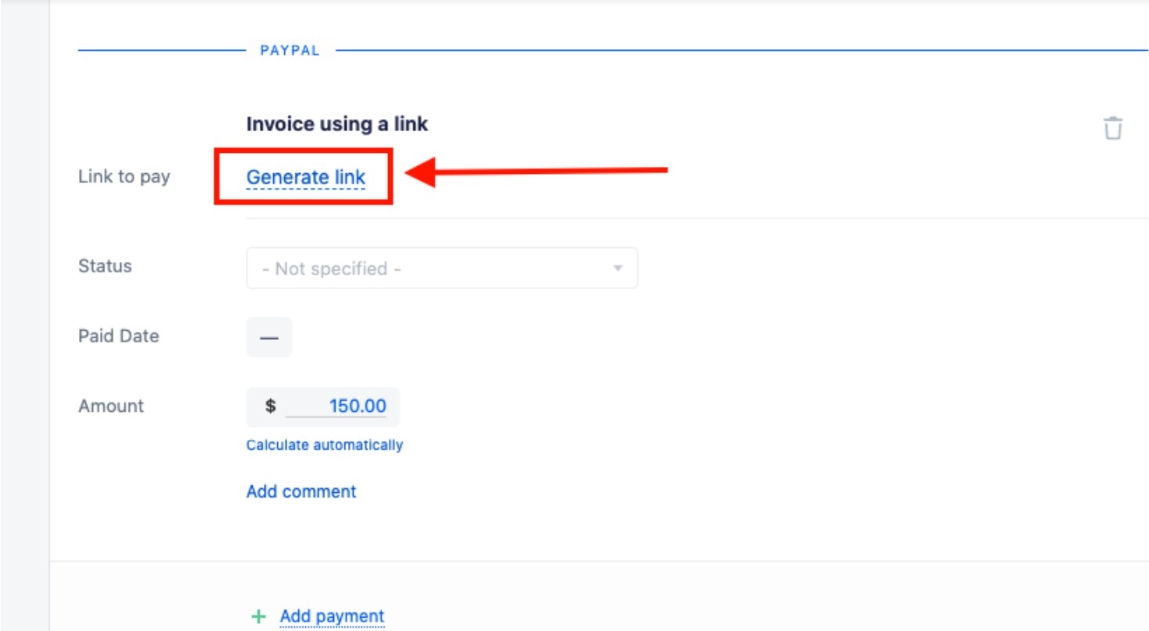
Generate and send a payment link
After saving the order, you can generate a payment link. The following information and actions are then displayed:
- Link to pay: can be copied and sent to the customer in a chat.
- Send to email: sends the link to the email address specified in the order.
- Sum: total amount to be paid.
- Creation date: date when the link was generated.
- Invoice status: updates automatically when the payment is completed.
- Cancel: cancels the link.
- Status: updates automatically according to the configured status mapping.
- Paid date: date when the payment was completed.
Payment and refund
When the customer opens the link, PayPal displays the payment page.
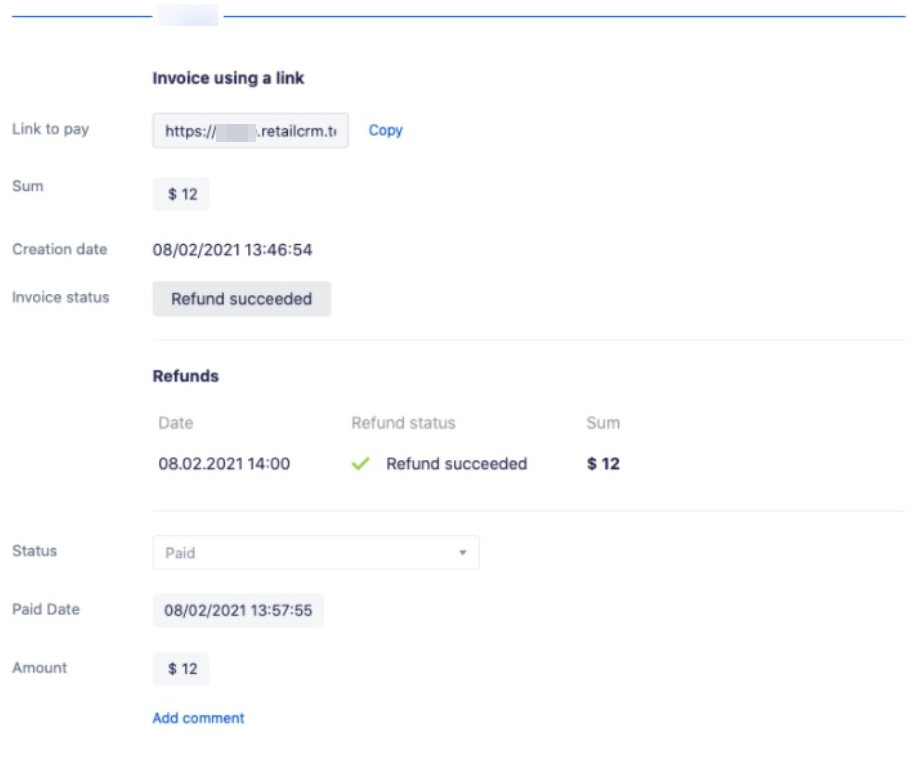
After a successful payment, its status is updated in the order according to the configured mapping. The Sum and Paid date fields also show the updated data.
To issue a refund, click Obtain a refund in the order.
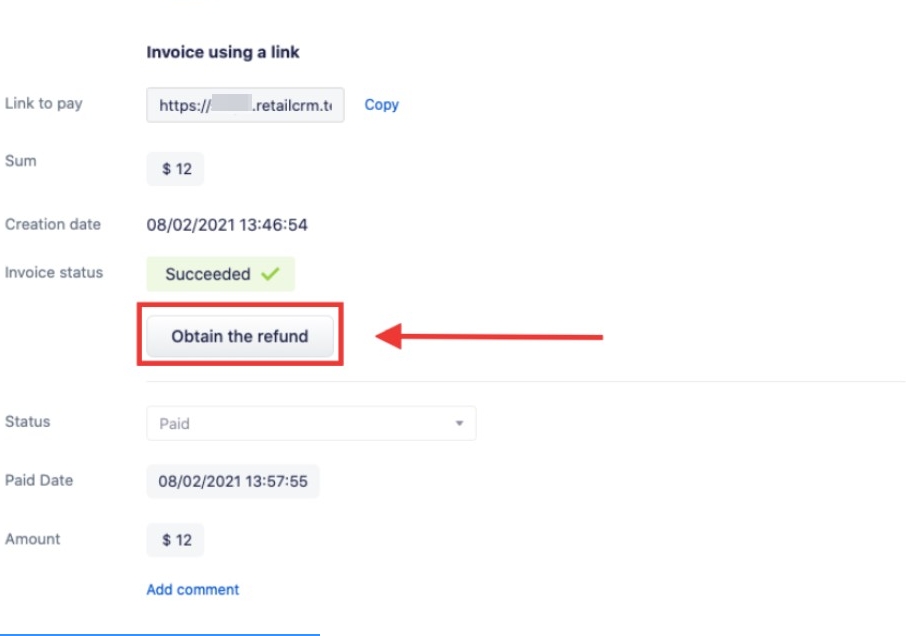
After the refund is confirmed, the payment status is updated automatically.