
Contents
- Distributed instructions
- Main prompt
- Additional prompt slots
- Scenario instructions
- Work dashboard
- Signals
- Descriptions of scenario step variables
- How to write instructions
- Use clear and specific wording
- Describe the desired behaviour
- Explain the reason for the rule
- Separate instructions by topic
- Place instructions in the right location
- Avoid contradictions
- Start with simple instructions
- Define behaviour when there is no answer
- Choose the right language for instructions
- Symptoms and where to look for causes
Instructions are the main way to control the agent's behaviour. The main prompt is only one of the places where instructions can be: the agent also receives them through prompt slots, knowledge base search, and the work scenario.
This document describes the architecture of the agent's instructions: which channels exist, at which stages of work they are used, how long they last, and which types of rules are best placed in each of them. A correct distribution of instructions helps keep the agent's behaviour predictable and makes its configuration easier to maintain as its complexity grows.
Distributed instructions
Instructions should be distributed by purpose, visibility, and lifetime. If one channel is overloaded — especially the main prompt — the agent loses focus, gets stuck in wordy instructions, and ignores details. Each rule should stand out exactly where it matters most.
The influence of an instruction depends on four things: where it is placed within the agent's total volume of instructions, when it becomes visible, how close it is to the current moment of the dialog, and how long it stays active.
You should not put all instructions in the main prompt. General working rules, the agent's positioning, and security requirements really do belong there; however, instructions tied to specific tasks or context are better placed closer to where they are used. The closer an instruction is to the moment of carrying out the task, the more specific and action-oriented it can be.
Overview of instruction channels
| Channel | What to use it for | Visibility and lifetime | Example |
|---|---|---|---|
| Main prompt | The agent's basic settings: personality, role, key tasks, boundaries, and general working principles | Always visible to the agent; broad background context for the entire time the agent works | "You are Mark, a real estate assistant. Do not give legal advice." |
| Additional prompt slots | Contextual instructions placed next to the corresponding data and settings of the agent. They let you refine the message formatting rules, the specifics of working during and outside working hours, and the instructions for using client data or the product catalog. | Some slots are always present and can supplement the agent's basic instructions; others are shown only if the corresponding slot is active | Working hours: "During working hours, complex questions can be handed over to a manager" |
| Knowledge base | Detailed instructions, frequently asked questions, descriptions of products and services, regulations, and descriptions of procedures that are loaded only when needed. | Not visible immediately. The agent obtains these instructions itself through knowledge base search while handling the client's requests | "To determine delivery zones and their cost, look in the knowledge base for the 'Delivery methods' document" |
| Scenario step description | The description, for the agent, of a specific visible scenario step: when and how to call it, what data to collect, and how to work with it at the scenario level. The agent must choose which scenario steps to call based on their description | Always visible to the agent while that scenario step is visible, until it is called (cold context) | Step instruction: "Ask the client for their name and phone." |
The Add instruction action |
A hot directive coming from a scenario step action: a specific action the agent must perform after the step runs successfully | Appears as a high-priority task and stays in front of the agent until it actually carries it out; completion is counted by what was actually done, and completed instructions remain visible to the agent as done — so it does not repeat them | "Find the client's order in the system and check the delivery address in it." |
The Go to another step action |
A hot transition instruction to the next scenario step, which the agent receives after the current step runs successfully | Shown in the dashboard until the agent calls the specified target step | "Move on to calculating the delivery cost after checking the client's address." |
The Update scenario context action |
Persistent hot context, written into the agent's memory as a result of running a step: important scenario information that must stay in front of the agent while it works with the following steps | The instruction appears after the corresponding action is called. It stays active until another call of this action clears or overwrites it; it has a very strong influence | For example, the chosen product names, the agreed delivery restrictions, the order created during the work. |
| Signals | Background behavioural triggers for implementing complex conditional rules, automatic reactions, and changes in the agent's behaviour when certain states are detected | After the system detects it, the signal's name and value are shown to the agent. Signals can trigger scenario steps that add hot instructions via actions | Signal: "Client's mood = irritated". The Add instruction action: "Suggest handing the dialog over to a manager." |
| The agent's work dashboard | A dynamic summary of the agent's current state: active tasks, missing data, the current scenario stage, hot instructions, signal values, and the results of running steps | Constantly updated and contains information relevant to the current stage of work with the scenario. Strongly influences the agent's actions while there are unresolved tasks | Signal: "Client's mood" = irritated. Missing field: phone. Next step: ConfirmDeliveryAddress. |
Main prompt
The main prompt is the primary source of the agent's permanent instructions. It defines its role, tasks, general behaviour rules, and boundaries of responsibility. Unlike scenario steps, signals, and temporary instructions, the main prompt is present in the agent's work permanently and influences all dialogs.
The main prompt is best suited for information that must remain valid regardless of the current scenario, the dialog stage, or the client's state.
Recommended structure
The structure can vary depending on the agent's task, but it is usually useful to follow this order:
- The agent's identity and role
- The main task and work goals
- General rules of communication and behaviour
- The agent's main responsibilities
- Limitations and security requirements
- A brief description of the domain
- Rules for using the knowledge base and other sources of information
Using headings and logical sections makes instructions easier to maintain and helps avoid contradictions as the agent's configuration grows.
What to place in the main prompt
The main prompt is especially well suited for the following types of information:
- the agent's role and positioning;
- a description of the company or business;
- the agent's main tasks;
- the rules for communicating with clients;
- general requirements for the quality of replies;
- limitations and security rules;
- a description of the available knowledge sources;
- general principles for using scenarios and tools.
Such instructions rarely change during the agent's work and should apply equally in all dialogs.
What is better moved to other mechanisms
The main prompt is not meant to hold all of the agent's working logic.
The following types of information are usually better placed in other components of the system:
- detailed descriptions of products and services, frequent questions and answers — in the knowledge base;
- multi-stage processes and sequences of actions — in scenarios;
- temporary instructions for the current stage of work — the
Add instructionaction; - transitions between scenario stages — the
Go to another stepaction; - long-lived dialog context — the
Update scenario contextaction; - automatic detection of states and conditions — via signals.
This separation keeps the main prompt compact and focused on the agent's permanent working rules.
Practical recommendations
It is best to view the main prompt as a description of the agent's personality, responsibilities, and general working principles, not as a place to store all of the system's possible instructions.
If a particular rule applies only to a specific scenario, a client state, or a dialog stage, there is usually a more suitable mechanism than adding that rule to the main prompt.
For especially important rules, duplicating instructions in several places is acceptable. For example, a key requirement can be stated both in the main prompt and in the instruction of the corresponding scenario step.
Additional prompt slots
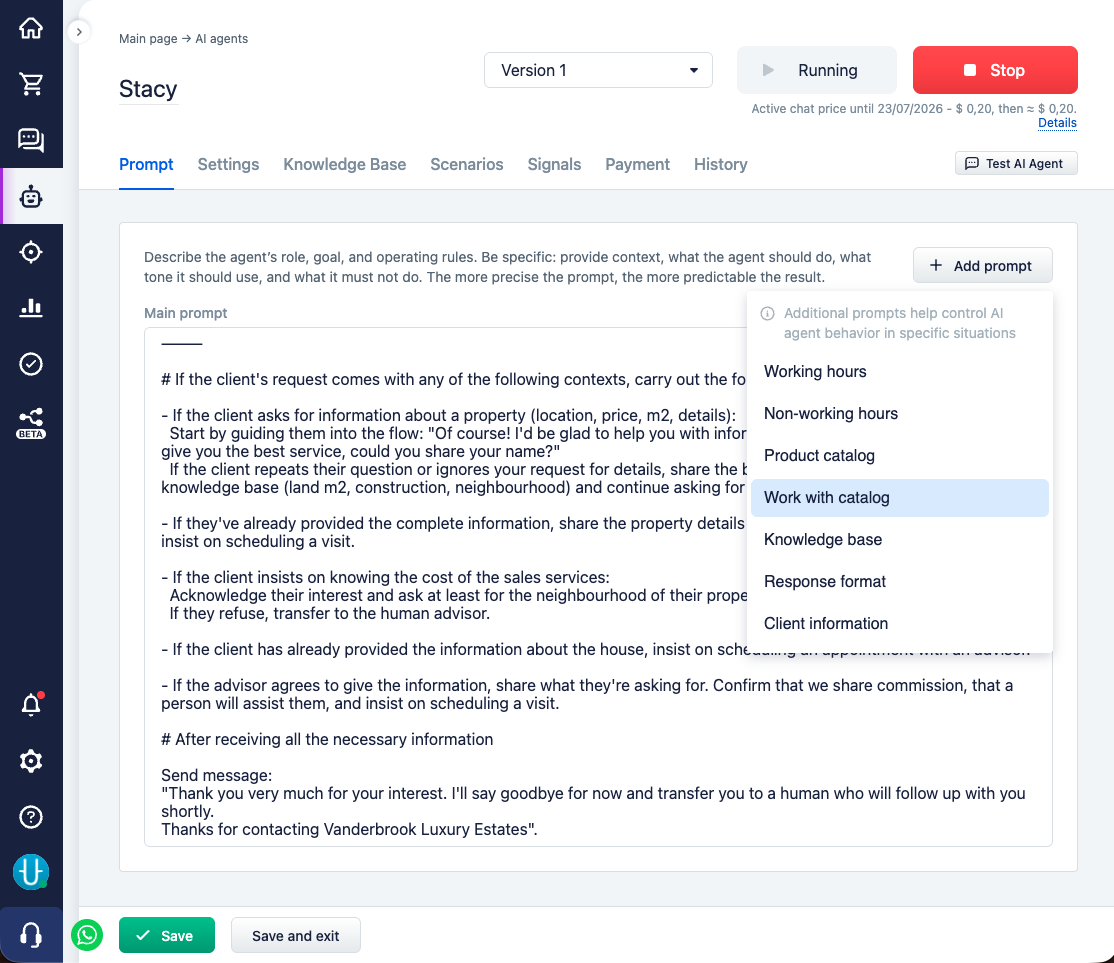
Besides the main prompt, the agent can receive additional instructions through specialised slots. Each slot is meant for a particular type of context and is activated only when the corresponding conditions are met.
This separation lets you keep instructions next to their area of application and avoid overloading the main prompt with rules that are only needed in specific situations.
When slots are used
| Slot | When available to the agent | Main purpose |
|---|---|---|
Main prompt |
Always | The main instructions, role, tasks, and general behaviour rules of the agent |
Working hours |
During working hours and only if the slot is filled | Specifics of working during working hours |
Non-working hours |
Outside working hours and only if the slot is filled | The agent's behaviour outside working hours |
Knowledge base |
Always | Additional instructions on using the knowledge base |
Response format |
Always | Rules for the format and structure of replies |
Work with catalog |
Only when catalog work is enabled | Rules for interacting with the catalog subagent for the product catalog |
Product catalog |
Only during the catalog subagent's work | Configuring product search and selection, assembling the list of items for the cart or order |
Client information |
Only if the slot is filled | Rules for using the client's CRM data |
How slots work
The Main prompt slot is the primary source of permanent instructions and has the strongest influence on the agent's general behaviour. This is usually where the agent's role, tasks, limitations, and general communication rules are placed.
The Knowledge base and Response format slots are available to the agent at all times. They let you supplement the built-in mechanisms for working with the knowledge base and formatting replies with your own instructions.
The Working hours, Non-working hours, and Client information slots are activated only when they are added in the agent settings.
The slots related to the product catalog are used only when catalog work is enabled. The Work with catalog slot configures the main agent's interaction with the catalog subagent, while the Product catalog slot configures the work of the subagent itself, which is responsible for searching for products, selecting items, and assembling the order cart.
How to use each slot
Main prompt
The agent's main slot. Contains its role, tasks, limitations, and general behaviour rules.
This slot is used in all dialogs and has the strongest influence on the agent's general behaviour. This is where it is recommended to describe the agent's identity, its responsibilities, communication rules, and other instructions that must apply regardless of the scenario, the time of day, or the client's state.
Detailed recommendations for configuring the main prompt are in the Main prompt section.
Working hours / Non-working hours
Slots for configuring the agent's behaviour depending on working hours.
At any given moment, the agent receives only one of these slots: the one for working hours or the one for outside them. Which slot is used is determined by the schedule configured in the system. If the corresponding slot is not filled, no additional instructions are added.
These slots are suitable for rules that should change depending on the availability of staff or the company's internal processes. For example:
- whether the dialog can be handed over to a manager;
- whether the client should be told about working hours;
- whether contact details should be collected for a callback;
- whether reminders or tasks can be created for the next working day;
- what expectations about response times need to be communicated to the client.
It is recommended to use such slots when the agent works around the clock but its behaviour must take the company's schedule into account.
Knowledge base
This slot is meant for configuring the agent's work with the knowledge base.
The system automatically provides the agent with information about the available documents and the mechanisms for searching them. The customisable part of the slot lets you additionally explain the structure of the knowledge base and the specifics of the domain.
Here it is recommended to describe:
- the most important documents;
- the company's internal terms and abbreviations;
- the names of products, services, and processes;
- the correspondence between clients' wordings and the documentation's terminology;
- the documents that should be considered the primary source of information on particular topics.
This slot is especially useful when clients use one terminology and the company's documentation uses another. A well-configured slot helps the agent link clients' questions to the right sections of the knowledge base and improves the quality of information search.
Response format
This slot is meant for configuring the style and formatting of the agent's replies.
The basic communication parameters are set through the agent settings: language, tone of communication, reply length, and message-splitting rules. This slot lets you additionally refine the formatting requirements for replies.
In this slot you can describe:
- the preferred communication style;
- the acceptable level of formality;
- the use of emoji;
- the formatting of lists and structured replies;
- the specifics of wording when confirming, refusing, or handing the dialog over to an employee;
- any other requirements for the appearance of messages.
It is recommended to use this slot for reply formatting rules, not for business logic or work scenarios.
Work with catalog
This slot is used only when working with the product or service catalog is enabled.
It is meant for configuring the main agent's interaction with the specialised catalog subagent. Through this slot you can explain in which situations the catalog should be used and which tasks should be delegated to the subagent.
Here you can place instructions about:
- when products or services should be searched for in the catalog;
- which types of requests require using the catalog;
- which specifics of the catalog are important to take into account;
- how the agent should act when selecting products or assembling the cart.
If the main agent does not always use the catalog correctly or misses situations where a product search should have been performed, additional instructions should usually be added precisely to this slot.
Product catalog
This slot is meant for configuring the catalog subagent itself.
The subagent is responsible for searching for products and services, selecting suitable options, and assembling the cart for subsequently creating an order. This slot lets you adapt its work to the specifics of a particular business and the catalog structure.
Here it is recommended to describe:
- which product fields and properties are the most reliable;
- which categories and attributes should be taken into account in the search;
- the specifics of the catalog structure;
- the rules for working with stock and product availability;
- additional criteria for filtering results.
This slot is especially useful for catalogs with a complex structure, non-standard product names, or incompletely filled-in cards.
Client information
This slot is meant for configuring the agent's work with the client's CRM data.
When activated, the agent receives a brief summary of the client that may include their name, contact details, address, tags, and the values of custom CRM fields.
The customisable part of the slot determines how the agent should use this information during communication.
For example, here you can describe:
- which information should be used in the greeting to the client;
- which client tags the agent should pay attention to;
- which client data is especially important for the agent's work;
- which data should be ignored in certain situations.
It is recommended to use this slot for rules on interpreting CRM data, not for storing the client's data itself.
Scenario instructions
The scenario provides several types of instructions that influence the agent's behaviour at different stages of work. They differ in the moment they appear in the agent's context, the duration of their effect, and the tasks they are meant for.
When designing a scenario, it is important to understand this difference and use each mechanism for its purpose. This makes the agent's behaviour more predictable and avoids overloading individual instruction channels.
Scenario step instructions
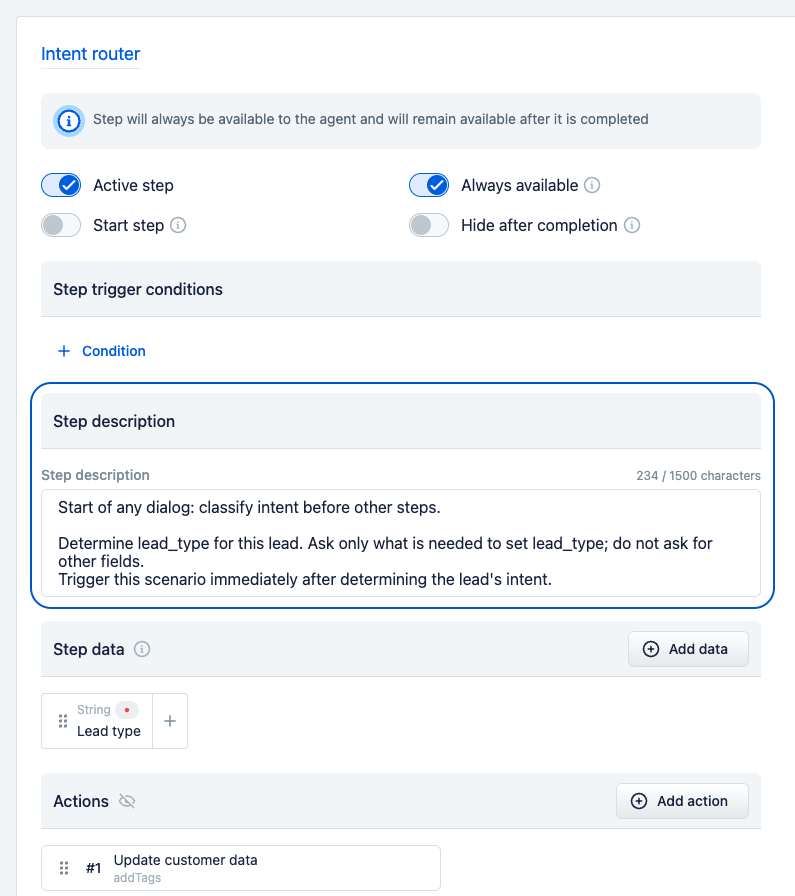
A step instruction explains to the agent the purpose of the scenario step, the conditions for its use, and the data that needs to be obtained to run it.
Such instructions are available to the agent before the step is called and help it navigate the available scenario options. The agent uses them to decide which step is suitable for the current situation and what data needs to be collected from the client.
It is recommended to use step instructions to answer the following questions:
- what this step is for;
- in which situations it should be called;
- what data needs to be obtained before running it;
- what actions are expected of the agent at the scenario level.
A step instruction should not describe the internal implementation of the system's actions. The agent works with the scenario at the level of steps and does not know which actions are performed inside a step after it runs successfully.
If a step is an important entry point into the scenario, this should be stated explicitly in its description.
Two-way highlighting
For especially important actions, it is useful to use several instruction channels at once.
For example, the existence of an important step can be mentioned in the agent's main prompt and additionally described in detail in the step's own instruction. This approach reduces the likelihood that the agent will skip the necessary functionality while working with the scenario.
The Add instruction action
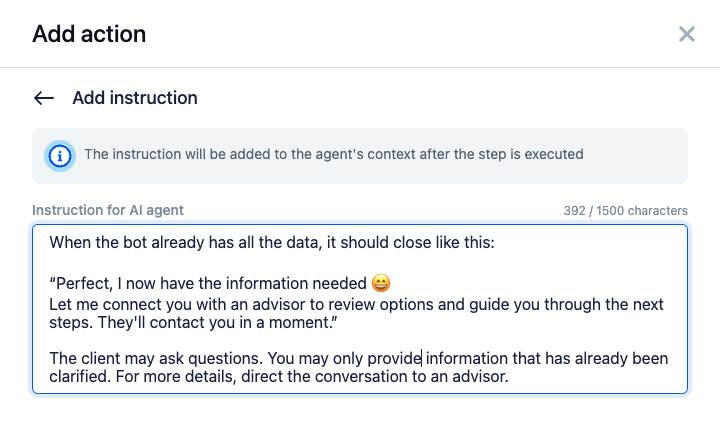
Add instruction gives the agent a specific task that appears after the step runs and stays active until it is carried out.
Unlike the step instruction, which helps decide whether to call the step, Add instruction defines what the agent should do next — and the system verifies that it has actually happened. The agent itself marks which move carries out the instruction, but the mark only counts if that move completed successfully: saying "will do" without doing does not close the instruction. An instruction left uncompleted stays among the agent's tasks, holds its attention, and does not let it finish work having "forgotten" the directive.
If the instruction requires messaging the client, only a move that itself carries that text counts as completion: the agent's own reply, or a step whose message to the client is filled in from the step data — for example, a farewell message when the dialog is handed over.
Completed instructions do not vanish without a trace: the agent sees them listed as already done and does not repeat them. If the same directive is issued again — for example, the step with this action runs once more — the instruction becomes an active task again.
Usually such instructions are used for:
- clarifying questions to the client;
- explaining the next actions;
- carrying out a specific task after finishing the step;
- passing additional context between scenario stages.
Instructions of this type should be short, specific, and describe one verifiable action: the clearer it is what counts as completion, the more reliably the agent will see it through.
Transition instructions in the Go to another step action
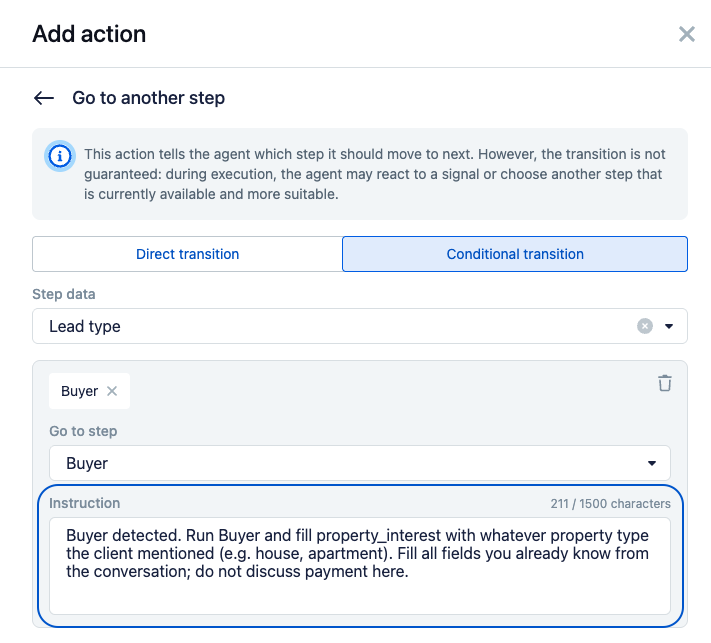
Go to another step is used to manage transitions between scenario steps.
After a step runs, the agent receives information about the next recommended step and can receive additional explanations about the reasons for that transition.
If Add instruction answers the question "what to do next", Go to another step answers "where to move next within the scenario".
This mechanism is especially useful in multi-stage scenarios, where the order of running the steps matters and must be controlled by the system.
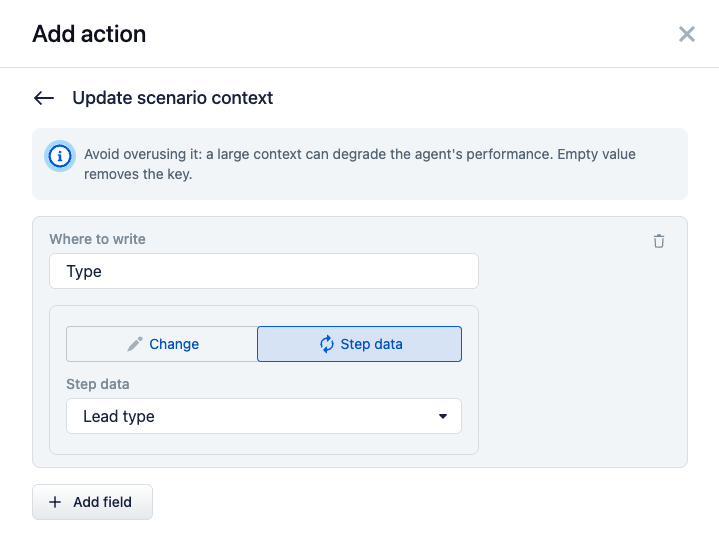
Persistent context via the Update scenario context action
Update scenario context lets you save important information in the work dashboard and make it available to the agent at later stages of work.
Unlike temporary instructions, this context is preserved between scenario steps and continues to influence the agent's behaviour until it is changed or removed.
This mechanism is convenient for storing:
- the parameters chosen by the client;
- important agreements;
- intermediate scenario results;
- the client's limitations and preferences;
- information that will be needed at the next stages of work.
Since such context is preserved for a long time, it is recommended to store only genuinely important information in it and to clear outdated data in good time.
Comparison of scenario instructions
The step instruction helps the agent understand the purpose of the available steps and choose the appropriate action according to the configured scenario.
The Add instruction action is used to pass a specific task that appears after the current step finishes and stays with the agent until it is actually carried out.
The Go to another step action manages transitions between scenario steps and helps the agent move along a predefined logic.
The Update scenario context action serves to store important information between scenario stages and forms the agent's long-term memory within the current work process.
Used together, these mechanisms let you separate permanent rules, current tasks, scenario navigation, and long-term context, without overloading a single instruction source with all possible requirements.
Work dashboard
The work dashboard is a dynamic summary of the agent's current state. Unlike prompt slots and the knowledge base, the dashboard contains information relevant to running the current scenario and is updated regularly during work.
The dashboard can contain:
- the current date and time in the CRM's time zone
- the active signals and their values
- the context saved via the
Update scenario contextaction - the current scenario tasks
- the filled-in and missing field values
- the instructions issued via the
Add instructionaction that are awaiting completion, and the list of those already carried out - the active transitions between scenario steps
- the scenario map — a brief route through the steps with the agent's current position: an unobtrusive background that helps it keep its bearings; active tasks always outrank the route
The dashboard significantly influences the agent's behaviour, since it contains the most up-to-date operational context. It is based on this information that the agent makes decisions about its next actions and about running the scenario.
It is recommended to keep the dashboard's contents up to date and to avoid accumulating outdated tasks, instructions, and transitions. Excessive or contradictory context can negatively affect the quality of the agent's decisions.
Special attention should be paid to the use of the Update scenario context action. Context saved this way can remain available to the agent for a long time and continue to influence its behaviour even after the original task is finished. For long-lived context, it is recommended to save only genuinely important information and to update or remove outdated data in good time.
Signals
Signals are background mechanisms for analysing the conversation that allow certain states, events, or patterns of the client's behaviour to be detected automatically.
When triggered, a signal becomes available to the agent through the dashboard and can influence its further decisions. In addition, a signal can trigger hidden scenario steps, perform system actions, and add temporary instructions to change the agent's behaviour.
Signals are convenient for automatically detecting states that are difficult or undesirable to describe directly in the agent's instructions: for example, signs of client dissatisfaction, repeated refusals, potentially problematic situations, signs of a valuable lead, or conditions for modifying the standard work scenario.
Detailed recommendations for designing and configuring signals are in the Signals section.
Descriptions of scenario step variables
A detailed description of the structure of scenario steps, fields, and options is in the Scenario steps section.
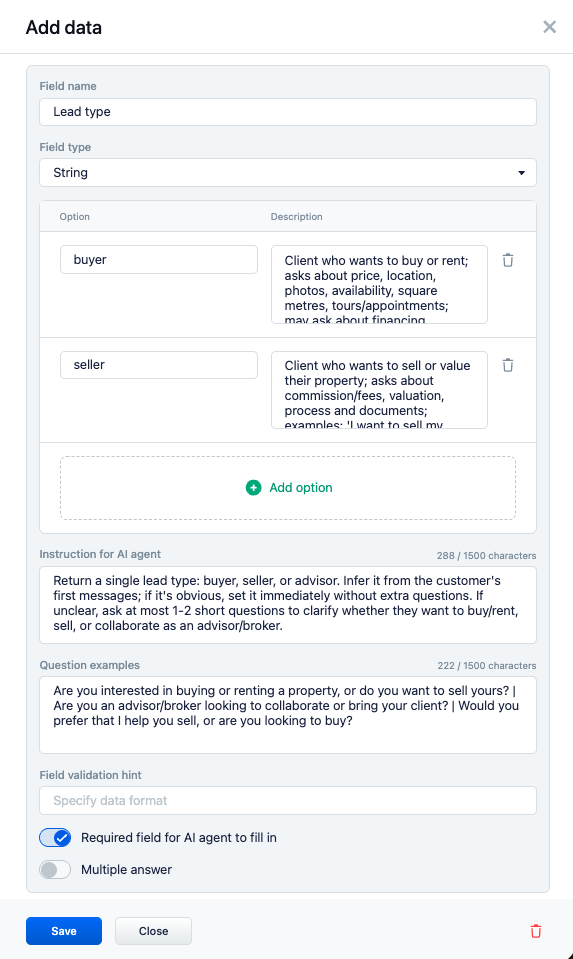
It is important to bear in mind that the descriptions of scenario step fields and available options, as well as the rules for requesting required data, are also part of the agent's instruction system. They help it understand what data needs to be obtained from the client, how to fill in scenario step fields, and by what criteria to choose between the available options.
The more precise and specific the descriptions of fields and options are, the more stably the agent collects data and makes decisions while running the scenario.
How to write instructions
Use clear and specific wording
An instruction should describe the agent's expected behaviour as unambiguously as possible. The more specific the rule, the more stably it will be followed.
Bad: "Be helpful and reply well"
Good: "If the client's question needs clarification, ask one clarifying question. After that, give a specific answer and suggest the next step."
Describe the desired behaviour
Whenever possible, phrase instructions in terms of the expected result rather than a list of prohibitions.
Bad: "Do not use markdown"
Good: "Reply in plain text, without formatting"
The exception is security restrictions and other rules that must not be broken.
Explain the reason for the rule
If a rule is related to the specifics of the business, client service, or the company's internal requirements, it is useful to briefly explain the reason.
Bad: "Do not mention the weight of dishes"
Good: "Do not mention the weight of dishes. Clients choose dishes by their composition and taste, and exact values can create the wrong expectations."
Understanding the reason helps the agent apply the rule in similar situations.
Separate instructions by topic
Use headings and logical blocks for the different aspects of the agent's behaviour. Do not mix the description of the agent's role, communication rules, business logic, and reply examples in one section.
Well-structured instructions are easier to maintain and develop as the scenario grows.
Place instructions in the right location
Not all rules should be in the main prompt. General working principles and the agent's role are usually located in the main instructions, while rules relating to specific tasks or context are better placed closer to where they are applied: in prompt slots, scenario steps, signals, or the knowledge base.
Avoid contradictions
Different instruction sources should complement one another, not conflict.
If special rules exist for particular situations, it is recommended to explicitly define their priority relative to the general instructions.
Start with simple instructions
In many cases, clear rules and a description of the work process are enough for the agent. Additional behaviour examples should be added only when simple instructions are not enough to get a stable result.
Define behaviour when there is no answer
It is important to define in advance how the agent should act in situations where the necessary information is missing.
Example: "If the answer is not in the knowledge base, tell the client and offer to hand the dialog over to an employee. Do not make up information about products, prices, deadlines, or service conditions."
Choose the right language for instructions
Instructions related to communication with the client should be written in the language of the target audience. Questions to the client, reply templates, and message examples should also match the language of communication.
Technical field descriptions, validation rules, and service comments can use the language adopted during the system configuration.
Symptoms and where to look for causes
| Problem | Possible cause | What to check |
|---|---|---|
| The agent ignores a general rule | The rule got lost among a large number of instructions or conflicts with higher-priority directives | Move the rule to a more suitable place, simplify its wording, or duplicate it in the related context |
| The agent makes up information | It is not clearly enough described how to act when data is missing, or the knowledge base does not have the needed information | Add a rule against guessing and check the knowledge base contents |
| The agent replies in too much detail | Reply format requirements are not configured, or the instructions contain unnecessary details | Configure formatting rules and add requirements for the reply length |
| The agent does not use the knowledge base | It is not stated when the knowledge base should be used, or the wordings in the documents differ from clients' questions | Add instructions on using the knowledge base and clarify the key terms |
| The agent does not call the needed scenario step | The step's purpose is not described clearly enough, or the step is not available in the current state of the scenario | Check the step's availability and refine its description |
| The agent does not move to the next step | The transition condition is not configured or is phrased ambiguously | Check the transition logic and the related instructions |
| The agent ignores issued instructions | There are too many tasks active at once in the context, or there are conflicting directives | Remove outdated tasks and check the active instructions |
| The agent keeps using outdated information | The old context was not cleared or updated | Check and update the agent's saved context |
| The signal fires, but the behaviour does not change | No further actions or instructions are configured for the detected state | Check the related scenario steps and instructions |
| The agent fills in data incorrectly | The field description is not precise enough or does not contain examples | Refine the field description and add fill-in examples |
| The agent does not request required data | The request for the missing information is not configured or is phrased unclearly | Check the request text and the field's required flag |
| The agent chooses the wrong option | The options are described too similarly or not in enough detail | Refine the description of each option |
| The agent confuses similar steps | The step names or descriptions are too similar to one another | Make the names and instructions more distinguishable |
| The agent acts too cautiously or passively | The instructions and limitations are excessively strict | Simplify the limitations and remove outdated directives that hinder the task |
Iterative approach
It is recommended to start configuring the agent with the minimum necessary set of instructions: the main prompt, the needed slots, the knowledge base documents, and the scenario steps. After testing on real dialogs, changes should be made in the channel that most closely matches the detected problem.
Not all problems should be solved through the main prompt. Different mechanisms are meant for different tasks: field descriptions for extracting data, scenario steps for controlling behaviour, Update scenario context for long-lived context, signals for automatically detecting states, and the knowledge base for reference information.
After each change, it is important to check for duplicated instructions, contradictions between the different configuration channels, and the impact of the changes on the agent's other work scenarios.