
Contents
- Channels and working hours
- Communication format
- Reminders and automatic closing
- Clearing the context when the dialog is closed
- Schedules
- Catalog
- Knowledge base training
- How settings relate to the scenario
The agent settings define its general behaviour: where the agent works, when it replies, in what style it writes, how it handles waiting for the client's reply, and which additional capabilities it uses.
These settings do not change the agent's scenario. If you need to change the behaviour logic, add a scenario branch, configure transitions between steps, conditions, or actions, that is done in the agent's scenario. The settings are responsible for the agent's general working mode on top of the scenario.
Channels and working hours
| Setting | What it does |
|---|---|
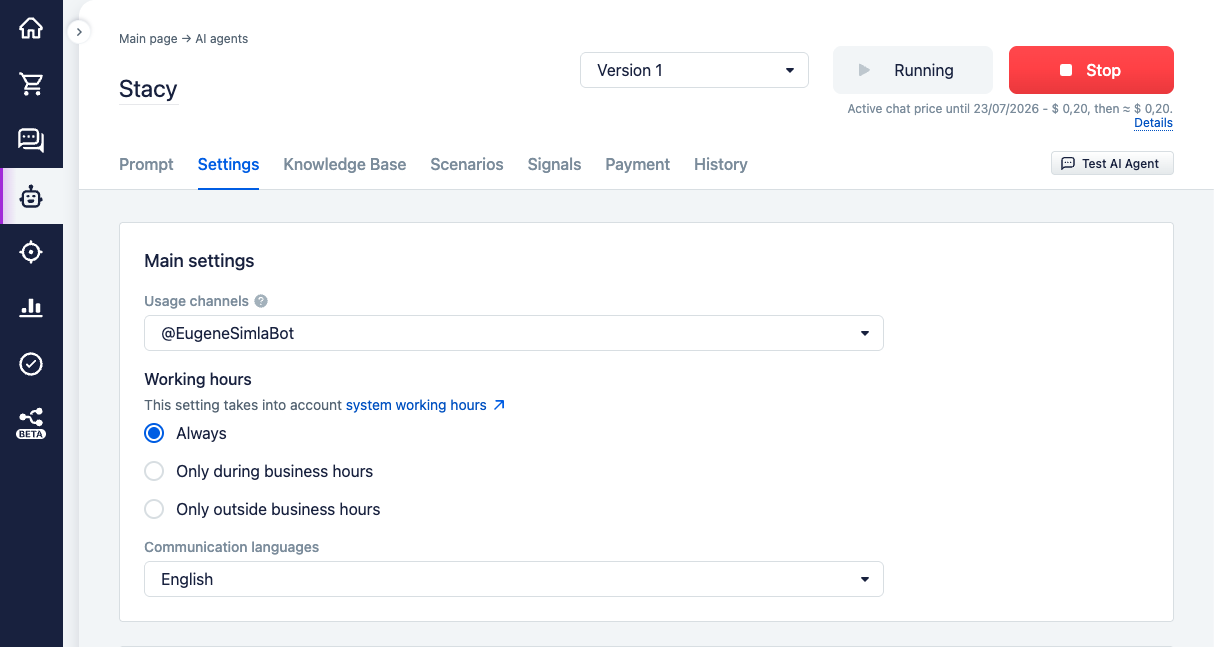
| Usage channels | Determines which connected channels the agent works on. If not all channels are selected, the agent will reply only in the specified channels of the system |
| Working hours | Determines when the agent is active: Always, Only during business hours, or Only outside business hours |
The working hours are taken from the CRM's system schedule. In addition to it, you can create the agent's own schedules for specific tasks — see the Schedules section below.
Communication format
| Setting | What it does |
|---|---|
| Communication languages | Sets the languages the agent should reply in |
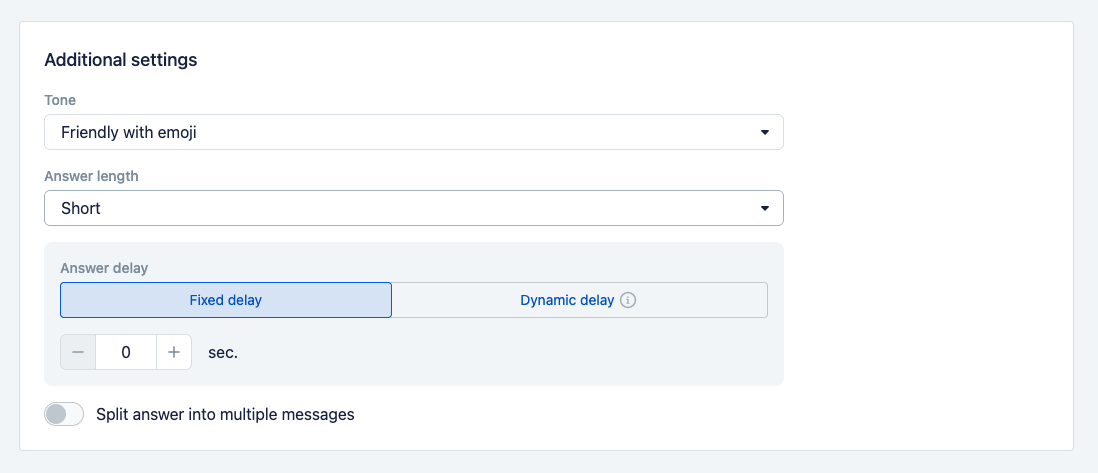
| Tone | Determines the general reply style: more friendly, neutral, or formal. This is a quick way to set the basic manner of communication without editing the instructions separately |
| Answer length | Controls how briefly or in how much detail the agent replies |
| Split answer into multiple messages | Lets the agent split a single reply into several logical messages. This is useful for channels where several short messages look more natural than one long one |
| Answer delay | Adds a pause before the agent's reply |
The answer delay is added on top of the time the agent spends processing the message and running the scenario. For this reason, in most cases it is better not to set an additional delay without need.
Reminders and automatic closing
| Setting | What it does |
|---|---|
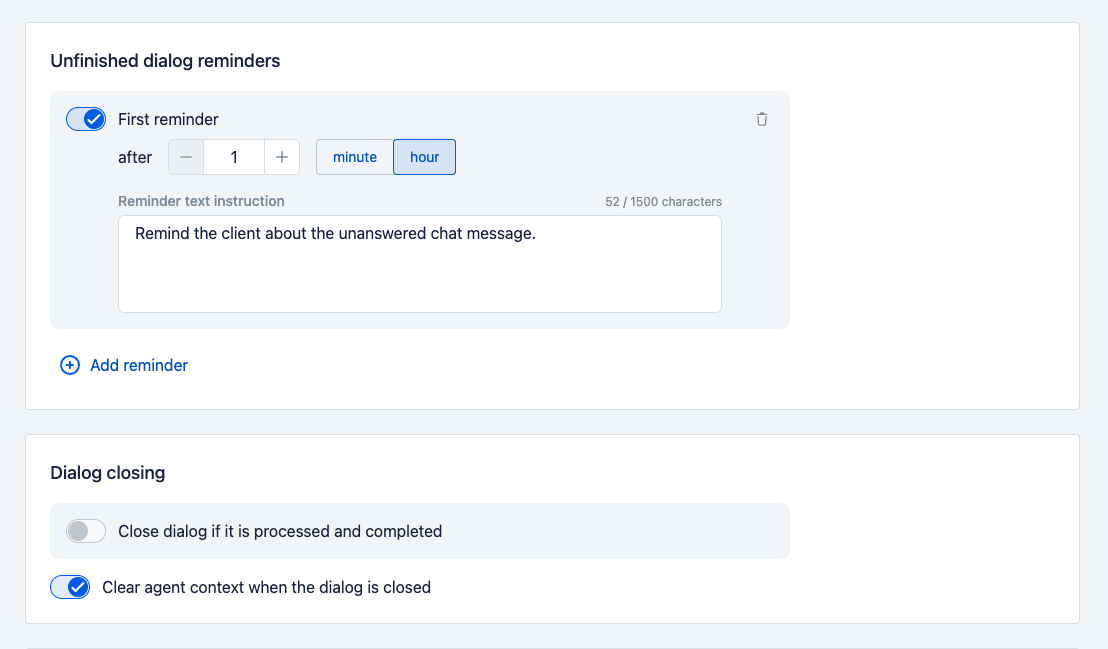
| Reminders | Enables automatic reminders in dialogs where the agent is waiting for the client's reply. This is a simple way to gently bring the client back to the conversation without configuring the scenario separately |
| Time until reminder | Determines how long after starting to wait for a reply the reminder is launched |
| Reminder text instruction | Sets what the agent should write or do on the reminder |
| Automatic dialog closing | Enables the check of whether a finished dialog can be closed |
| Time until automatic closing | Determines how long after which the check of the dialog's completion is launched |
Reminders are added when the agent has sent a message and is waiting for the client's reply. If a new message from the client, the manager, or another bot appears in the dialog, the previously created reminders are cancelled.
Automatic closing does not simply close the dialog by a timer. The system first checks whether the conversation is logically complete and whether any open questions remain. If the client has continued communicating, the check is postponed.
Clearing the context when the dialog is closed
The "Clear agent context when the dialog is closed" setting (enabled by default) determines whether the agent's accumulated scenario context is reset when the dialog is closed. Since this directly affects how the scenario works, the details — exactly what is cleared, what survives the closing, and how to clear the context manually when the setting is disabled — are described in the What accumulates in the context and when it is reset section.
Schedules
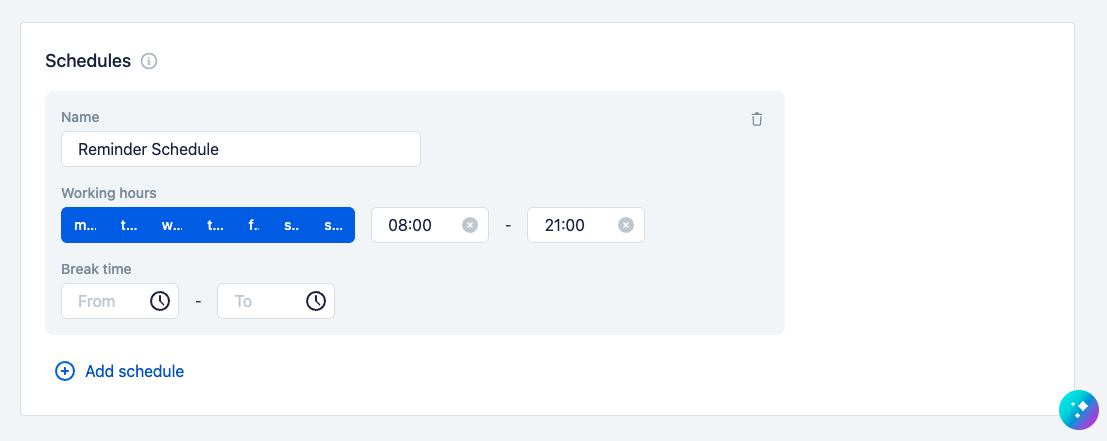
Besides the CRM's system working hours, you can create the agent's own schedules — separate time windows for different tasks: the period of a promotion, the shift of a particular group of managers, a window for sending delayed actions (so as not to write to clients at night or on weekends). They are configured in the "Schedules" block and then used in the agent's working mode, in scenario conditions, and when launching delayed actions. For details, see the Schedules section.
Catalog
| Setting | What it does |
|---|---|
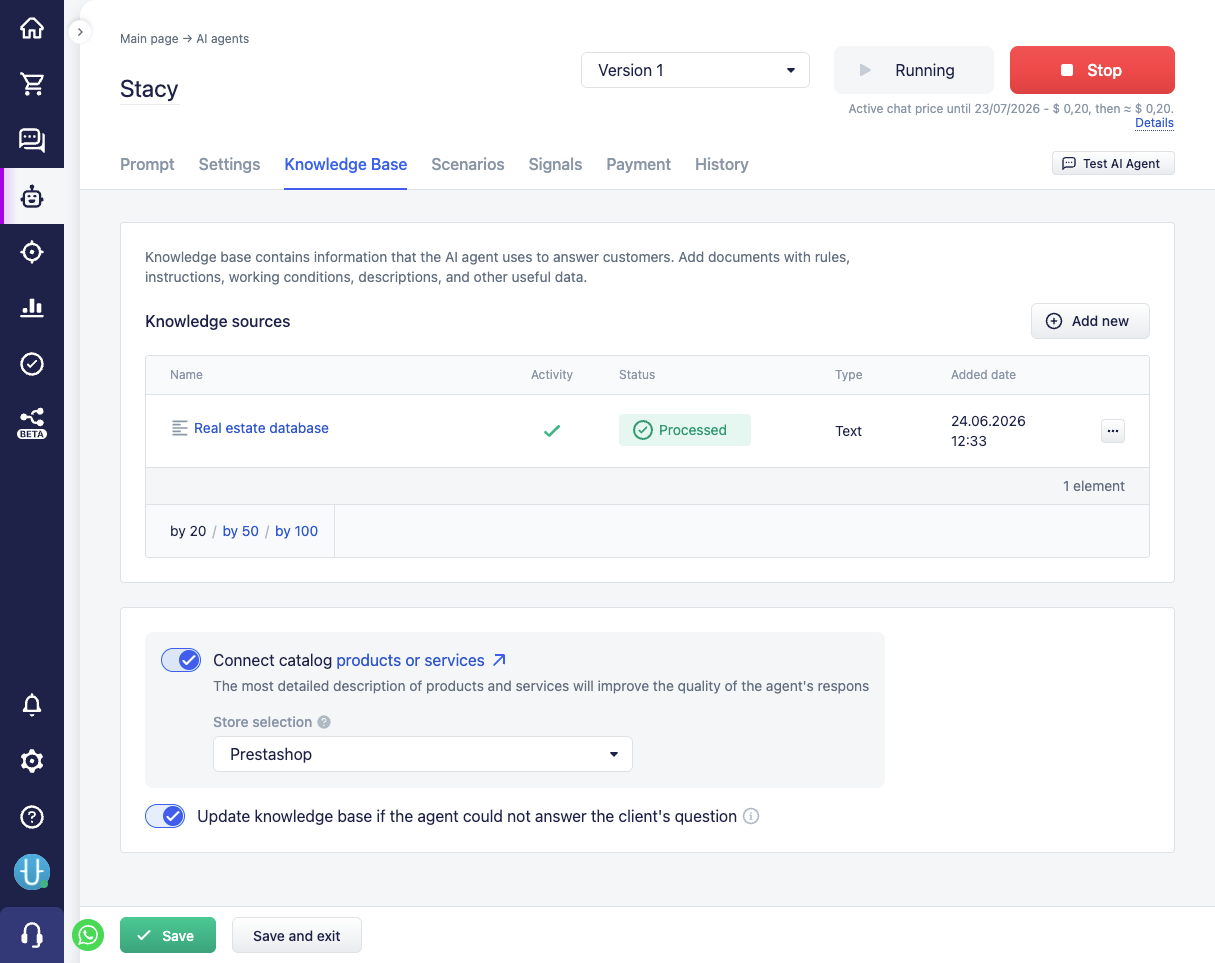
| Connect catalog (products or services) | Enables additional help for the agent in searching for products or services, selecting items, and preparing the cart |
| Store selection | Indicates which CRM store's catalog the agent should work with. This matters if the account has several catalogs or stores |
If working with the catalog is enabled, the agent gains the ability to search for suitable products or services and use the found data in the dialog with the client.
These settings — connecting the catalog with store selection and expanding the knowledge base — are located on the "Knowledge Base" tab.
Knowledge base training
The Update knowledge base if the agent could not answer the client's question setting helps to collect the clients' questions that the agent could not answer during its work.
When such requests are received, the system checks whether a similar unanswered question already exists, so as not to create duplicates. The new knowledge base document is created in moderation and is not used by the agent right away. The system user must add the correct answer, after which the material goes into the knowledge base and can be used in future dialogs.
This setting is useful when the agent is already working with clients and the team wants to gradually find gaps in the knowledge base and fill them based on real enquiries.
How settings relate to the scenario
The settings define the agent's general working mode, but they do not replace the scenario or the step instructions.
Use the settings when you need to change the general behaviour: channels, working schedule, communication style, reminders, automatic closing, catalog, or knowledge base training.
Use the scenario when you need to change the logic of the agent's behaviour: which steps are available to the agent, which actions are performed, when to launch transitions, conditions, signals, or particular communication branches.