
Contents
- How steps are assembled into a scenario
- Work dashboard
- How the agent works through a scenario
- How to choose the scenario structure
A scenario is the predefined logic of the agent's behaviour, assembled from steps linked to one another. How an individual step is structured as a building block is covered in the Scenario steps section; here we look at how a scenario is composed from steps, how the agent moves through it, and how to choose its structure for the task.
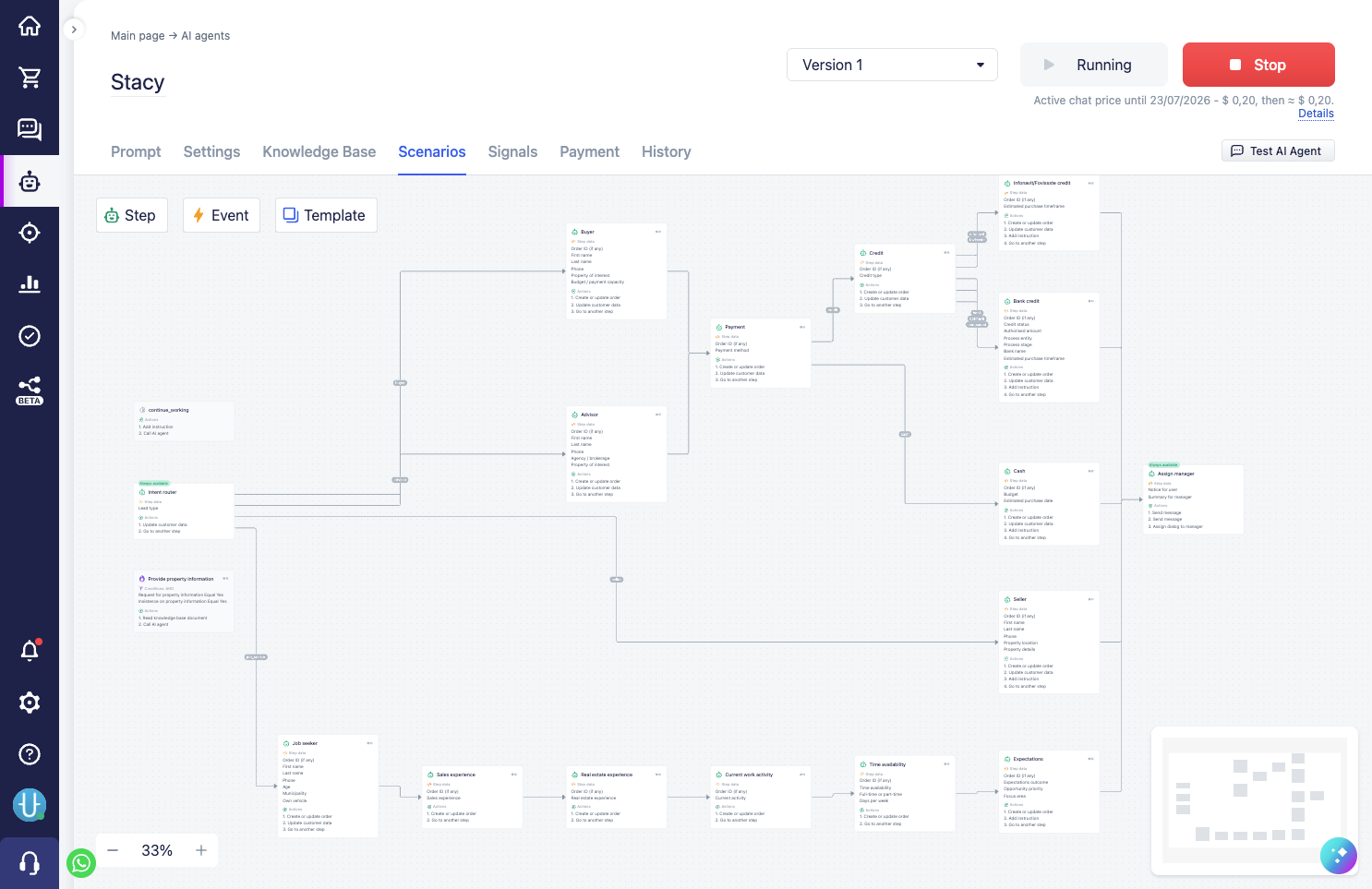
How steps are assembled into a scenario
The key principle: the agent itself moves the scenario along. Even if an arrow is drawn on the map from step A to step B, this is not automatic execution — the agent sees the steps and hints available at the moment and decides for itself to call the next one. Thanks to this, the agent is not a "robot on rails": if the client clarifies something in the middle of the scenario, the agent can answer their question and then return to the scenario.
Steps are linked to one another through actions:
- "Go to another step" — an immediate link: after the current step, the agent receives the task of moving to the next one. The transition can be direct (always the same next step) or branching (different steps depending on which of the predefined value options was chosen in the step's field).
- "Delayed step launch" — a link in time: the system itself will start the specified step after a set interval (see the Delayed actions section).
- "Handoff dialog to manager" — the dialog goes to a person, and after their work the control can return to the agent at a specified step.
Here it is important to distinguish between what the agent sees and what it can do. The structure of the scenario — the steps and the transitions between them — the agent generally sees: this helps it understand how the conversation is organised and where it can lead. But it cannot go just anywhere: the agent can call a step or open it by transition only among those available right now — this is determined by the visibility checkboxes and the configured transitions. For more on availability, see the The agent can only access the steps allowed right now section.
Work dashboard
While the agent moves through the scenario, the system shows it the work dashboard — a summary of the current state: what has already been collected, what is missing, which step to move to next. The dashboard updates on every turn and strongly influences the agent's actions. Its composition is described in detail in the Work dashboard section.
For the scenario author there is an important nuance here: the dashboard already directs the agent, so there is no need to duplicate strict directives everywhere. It is better to guide the agent gently — through step descriptions and the prompt — and leave it room to reason. Sometimes it is useful to explicitly allow the agent to be flexible: for example, "if the client clarifies something, answer before returning to the scenario".
How the agent works through a scenario
This is the core of scenario design — the very thing steps exist for.
The agent's capabilities come from steps, not the prompt
An agent working in the chat can, by default, communicate on its own — and quite well: carry on a dialog, answer questions, find materials in the knowledge base, select products. But all of this remains conversation. If the agent's tasks are described only in the main prompt, it will try to solve them literally in words: ask something, promise something — for example, endlessly promising to connect the client with a manager and in the end never connecting them, because it simply has no means to perform the action in the system.
Real capabilities appear for the agent only together with scenario steps and the actions inside them. A step is a tool that the agent can (and must) call to do useful work: not "promise to hand over to a manager", but actually hand over. So in the main prompt it is enough merely to highlight which functions the agent has and which step to call for what. The precise, detailed instructions on "how exactly to do it" should live in the steps themselves — the agent receives them gradually, as it works through the scenario, rather than keeping everything in its head at once.
How the system directs the agent
While the agent moves through the scenario, the system sets it tasks and shows them in the work dashboard (see the Work dashboard section above). These are the levers with which you, as the author, control its behaviour. The main types of tasks:
- Direct instruction — a short directive to do something right now, set by the "Add instruction" action.
- Data collection for a blocked step — while a step is missing required fields (or while a manual condition check via the "Block step execution" action has not been passed), the system keeps the task of collecting what is missing in front of the agent.
- Directing to the next step — a directive to move on, set by the "Go to another step" action. Such a transition can be made "silent": then the agent is not allowed to write to the client between steps and must silently follow the specified route — this noticeably increases the stability of behaviour in critical sections.
- Persistent context — the "Update scenario context" action adds a background directive to the dashboard that strongly influences how the agent follows the scenario further on.
- Clearing tasks — the "Clear agent tasks" action removes accumulated tasks in good time, so that the agent switches cleanly between different scenario branches and does not drag old goals along with it.
How steps chain into a scenario run
In the normal course of a dialog it looks like this. The agent starts when the client first writes in a new dialog. If the scenario has a start step (the "Start step" flag), the agent immediately receives the task in the dashboard to move to it.
Next, the "touch" mechanic matters. The agent can always call a step — "touch" it, that is, begin working with it — even if the step has required fields. But if data is missing (or there is a manual block), the directing task turns into a more important task: collect what is missing. This task will not disappear from the dashboard until the agent brings all the needed fields.
As soon as it has collected them and called the step, the step's actions run — and here we direct the agent again: we give a short but strong instruction to do something, or we point to the next step, reinforcing it with instructions on "how and why". The agent moves on and "touches" the next step — and there, again, either a block with data collection or a new direction may await it. This way, chaining step after step, a more deterministic run through the scenario is built up.
For more on how the different types of instructions differ and how they work, see the Comparison of scenario instructions section.
What accumulates in the context and when it is reset
While the agent moves through the dialog, it accumulates working context: the detected signals, the current step visibility (what is open, what is hidden after completion), the scenario context (data written by the "Update scenario context" action), and the dashboard tasks — collect a step's data, go to another step, carry out a received instruction.
By default, all of this context is reset when the dialog is closed — so that the same client's next enquiry starts with a clean slate rather than dragging the state of the previous conversation along. This is controlled by the "Clear agent context when the dialog is closed" setting (enabled by default, see Agent settings).
If the setting is disabled, nothing of the above is reset on closing — the tasks and context survive the closing and carry over to the next dialog. This is needed when the work must continue through the closing, but then the accumulated state has to be cleared manually — with the "Clear agent tasks" action. It is added to a step on dialog closing or at the necessary points of the scenario, so that the agent does not get confused by outdated tasks. In the action you can choose exactly which types to remove: "Step data collection", "Transition to another scenario step", "Custom instructions", "Steps context".
Important: even with the setting enabled, closing does not reset everything. What survives the closing:
- the state variable values written by the "Update state variable" action — they are deliberately preserved between the dialogs of a single chat. If such a flag should apply only within a single enquiry, reset it manually, for example in a step on dialog closing;
- the reminders created manually by the "Delayed step launch" action — they are also removed manually if needed. (System reminders — for waiting for a reply and for dialog idleness — are removed automatically on closing, regardless of this setting.)
Test every step in the test chat
It is worth testing each new step right away in the test chat: there you can see what tasks the system sets the agent in the dashboard and how it reacts to them.
An important subtlety: dashboard tasks are not visible in the agent's work logs. This is dynamic data — it is computed at the moment of work and does not accumulate in the conversation. Only the agent's specific actions, the called steps, and its reasoning about why it chose one tool or another remain in the history. That is why the test chat is the main way to see what the agent actually sees.
How to choose the scenario structure
The scenario architecture should be chosen to fit the functions and tasks of the specific agent — there is no single correct arrangement.
At one extreme is a loosely coupled scenario: the steps exist more or less independently, each solving its own task, and the agent calls them based on the step descriptions and the prompt instructions, in free form. This approach gives the agent a lot of freedom of action, while you keep control over which actions are performed and what data the agent brings. It is good where the conversation is unpredictable and flexibility matters.
At the other extreme is a deterministic scenario: many steps linked to one another, through which the agent must go in a fixed sequence, collecting the needed data stage by stage or doing the work through internal actions. This approach is appropriate in complex or critical sections, where predictability matters and a step must not be skipped.
Often the best solution is to combine both approaches: where the agent needs flexibility, leave it a freely available step, and break complex or critical sections into a sequence of linked steps and describe them in detail.
Where exactly to draw the line is something testing helps you understand. Gradually you notice the places where the agent's behaviour stops being stable — that is the signal that this section should be broken down into separate steps.