
Contents
- Where delayed actions come from
- How to start the agent and set a direction
- When it fires: how the time is set
- One step — one pending action
- Tying to a schedule
- When delayed actions are cancelled
- Flexible reminders via the message-sending step
- The risks of intrusive reminders
A delayed action is the launch of a scenario step by a timer after a set time. This way the agent returns to work later, without a new message from the client: to remind about an unfinished dialog, continue the conversation if the client has gone quiet, or check whether the dialog can be closed.
In essence, this is an "alarm clock": the system remembers which step to launch and when, and launches it at the right moment.
Where delayed actions come from
Delayed actions appear in two ways:
- System reminders — configured in the agent settings and work on their own: a reminder to the client when the agent is waiting for a reply and the client is silent; the auto-closing check for a finished dialog. For details, see the Agent settings section.
- The "Delayed step launch" action — added to the scenario and gives full control: you specify yourself which step to launch and after how long. This is a tool for any scenario task of "do something later".
When a delayed action fires, it launches the specified step — the one configured for the "Delayed action" event (see Which events a step can be configured for). Like any event step, it does not wake the agent on its own: only the actions defined in it run. How to start the agent on a fired timer and, if needed, give it a direction is in the next section.
How to start the agent and set a direction
A step that fired by a timer does not start the agent itself. There are two ways to start the agent — the choice depends on whether you need to change the agent's position in the scenario.
Just start the agent — the "Call AI agent" action. The agent starts, but its position in the scenario does not change: the set of tasks in the dashboard stays the same. Usually a one-off directive is given alongside it with the "Add instruction" action — and the agent receives an instruction to do something (for example, gently remind the client about itself) without leaving its current place in the scenario. This is handy for general reminders, when it is not known which step the agent stopped at in the chat.
Start the agent and direct it right away — the "Go to another step" action. Besides starting the agent, it sets it a specific direction of work in the scenario. Important: the target step must be an agent step (one that the agent works with) — otherwise the agent will not start.
Separately, take into account who the dialog is on at the moment. Both ways raise the agent only if the dialog is on the bot. The "Call AI agent" action has a soft mode by default: if a manager has already taken the dialog by the time it fires, the agent will not start. So when the agent must engage on a timer even on someone else's dialog, add "Call AI agent" with a suitable mode — "Background work" (do the work without taking the dialog over) or "Dialog takeover" (take the dialog over and reply). For details on the modes, see the Starting the agent when the dialog is not on the bot section.
If the timer needs not to supplement but to interrupt the agent's current work, first remove the accumulated tasks with the "Clear agent tasks" action, and then set a new direction by a transition to an agent step.
Bear in mind: the agent can have only one directing task — a new transition displaces the previously set one. So it is enough to give the current direction, and the previous one will go away by itself.
When it fires: how the time is set
The target step is chosen in the "Run step" field — only steps configured for the "Delayed action" event are available in it.
The launch time is set (in the "Run at" block) in one of three modes:
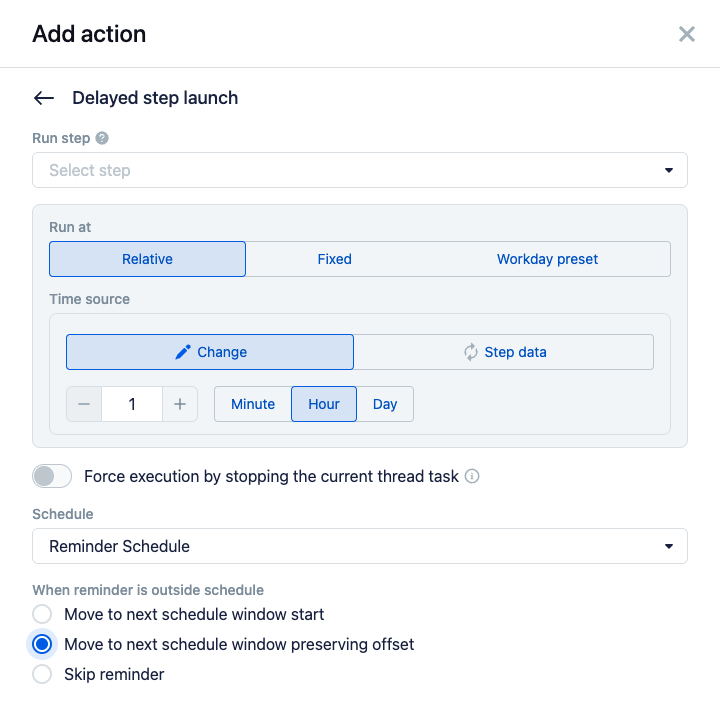
- Relative — after a set interval from the current moment: a number and a unit (Minute, Hour, Day). For example, "in 2 hours".
- Fixed — at an exact date and time.
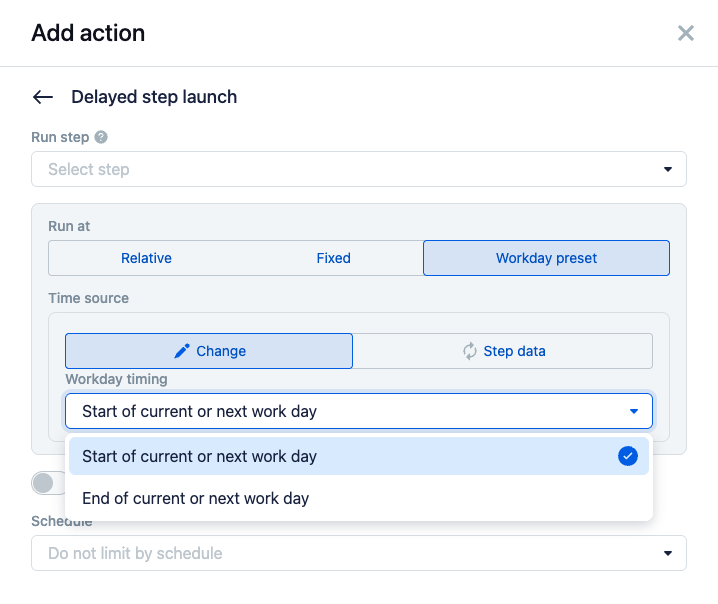
- Workday preset — at the "Start of current or next work day" or the "End of current or next work day".
The time value itself (the "Time source" block) can either be entered manually (the "Change" option) or taken from step data (the "Step data" option) — then the time is taken from a variable the agent filled in. This way the agent can determine the launch moment itself, based on the conversation.
One step — one pending action
For one and the same step in a dialog, only one pending delayed action lives. If you create a new one for the same step before the previous one has fired, only the launch time will be updated — duplicates do not accumulate. Thanks to this, a delayed action can be safely "extended": for example, pushing the reminder back each time while the conversation is active.
Tying to a schedule
In the "Schedule" field, a delayed action can be limited to one of the configured schedules (see Schedules) or left as "Do not limit by schedule". If a schedule is chosen, the action fires only within its window — this is the way not to write to clients at night or on weekends.
But the calculated launch time may well fall outside the window — for example, a reminder "in 3 hours" goes into the night. For this case, with a schedule chosen, the "When reminder is outside schedule" block appears, with three options:
- "Move to next schedule window start" — the launch is shifted to the moment the nearest suitable window opens. Everything that fell into the night will fire in the morning, when the window opens.
- "Move to next schedule window preserving offset" — also a move to the nearest window, but not right up against its start: by however much the launch went beyond the previous window, by that much we step back from the opening of the next one. This way several reminders that fell outside the window at different times do not pile up at a single point at the opening but keep the original intervals between them.
- "Skip reminder" — the reminder is simply not created. Suitable when "late" means "no longer relevant".
When delayed actions are cancelled
Scheduled delayed actions are removed automatically when they lose their meaning:
- the client sent a new message;
- the dialog was handed over to a manager;
- the dialog was closed;
- the agent gave a final reply that does not expect a response from the client.
An important subtlety about closing: only system reminders (waiting for a reply and dialog idleness) are removed automatically. Delayed actions created manually via "Delayed step launch" survive dialog closing — they are removed manually if needed (see What accumulates in the context and when it is reset).
For manual removal there is a separate action — "Cancel delayed launch". In it, you choose for which steps to remove the pending launches, or take the "Delete all pending reminders" option, which removes them all at once. This is handy in a step on dialog closing or when the scenario has gone down another branch and the previous reminders are no longer needed.
Flexible reminders via the message-sending step
The most flexible way to build reminders is to tie them to every outgoing message from the agent. It is important to understand here: the system itself does not create reminders. They are created by a step that you configure for the "Message sent to customer" event (see Which events a step can be configured for). Such a step fires right after every message the agent sends, and through its fields you can ask the agent to bring additional data right at the moment of sending.
The classic scheme. The step is given a flag field like "are we waiting for a reply from the client". When sending a message, the agent marks itself whether it asked a question and is waiting for the client's reaction. And then, inside the step, you branch the logic with conditional actions — the "Run next actions" action, which checks the value of this flag:
- waiting for a reply → create a reminder with the "Delayed step launch" action;
- not waiting (this was the final message) → conversely, remove the previously scheduled reminders with the "Cancel delayed launch" action.
In other words, the reminders are set and removed not by the system but by the step itself — based on the data the agent brought.
There can be several reminders too — a whole chain. For example, create three delayed launches in one step: in 30 minutes, in 3 hours, and in 22 hours. The last one is especially useful for WhatsApp: there, a business can write to the client only within 24 hours after their last message, so a reminder near the end of this window is the last chance to bring the client back into the conversation while the channel is still open.
The risks of intrusive reminders
Reminders are a powerful tool, but they should be approached carefully and the system built up gradually. Messages the agent sends by a timer easily become intrusive: if you bury the client in reminders, they will start to complain or send the conversation to spam. For an official number this is a direct risk — up to the blocking of the company's phone or messenger account.
So the rule is: when creating a delayed action, immediately think through when and how it will be removed. This is especially important with manual configuration, where the system will not remove the reminder for you — build in the cancellation conditions in advance (the client replied, the conversation went down another branch, the end of the chain was reached) via the "Cancel delayed launch" action or via a flag in the message-sending step. And it is better to start with one or two careful reminders and grow the chain while watching the clients' reaction, than to build an aggressive sequence right away.