
Contents
- The test chat
- How the test chat differs from a regular one
- One reply is several iterations
- Data blocks in the test chat
- Test constantly
- How to read the chat when something goes wrong
An agent cannot be configured "blind" and released to clients right away. Its behaviour is made up of many details — instructions, scenario steps, conditions, signals, the knowledge base — and it is impossible to predict the result on paper. So developing an agent must be accompanied by constant testing of its work. The test chat lets the system user talk to the agent as a client, analyse all of its internal actions, and see how well it solves the tasks set.
The test chat
The "Test AI Agent" button opens a chat on the agent settings page. You write to the agent just as a client would, and it replies according to its current configuration — the version open in the card.
You do not need to activate the agent for this — you can test a draft too. This way you fully check a version before launch, and it will not start working on a channel with real clients before you are confident in it.
It's free
As many checks as you like and no charges — the test chat is not billed (see What is not billed). So you can and should check the agent's work a lot.
It's isolated
The conversation goes only between you and the agent; nothing goes to real clients, and no real dialogs, clients, or orders are created in the CRM.
Reset — a clean slate
The button with the bin icon clears the conversation: the agent forgets the context, the collected data, and its place in the scenario, and starts over. This makes it convenient to run the same scenario from scratch many times.
How the test chat differs from a regular one
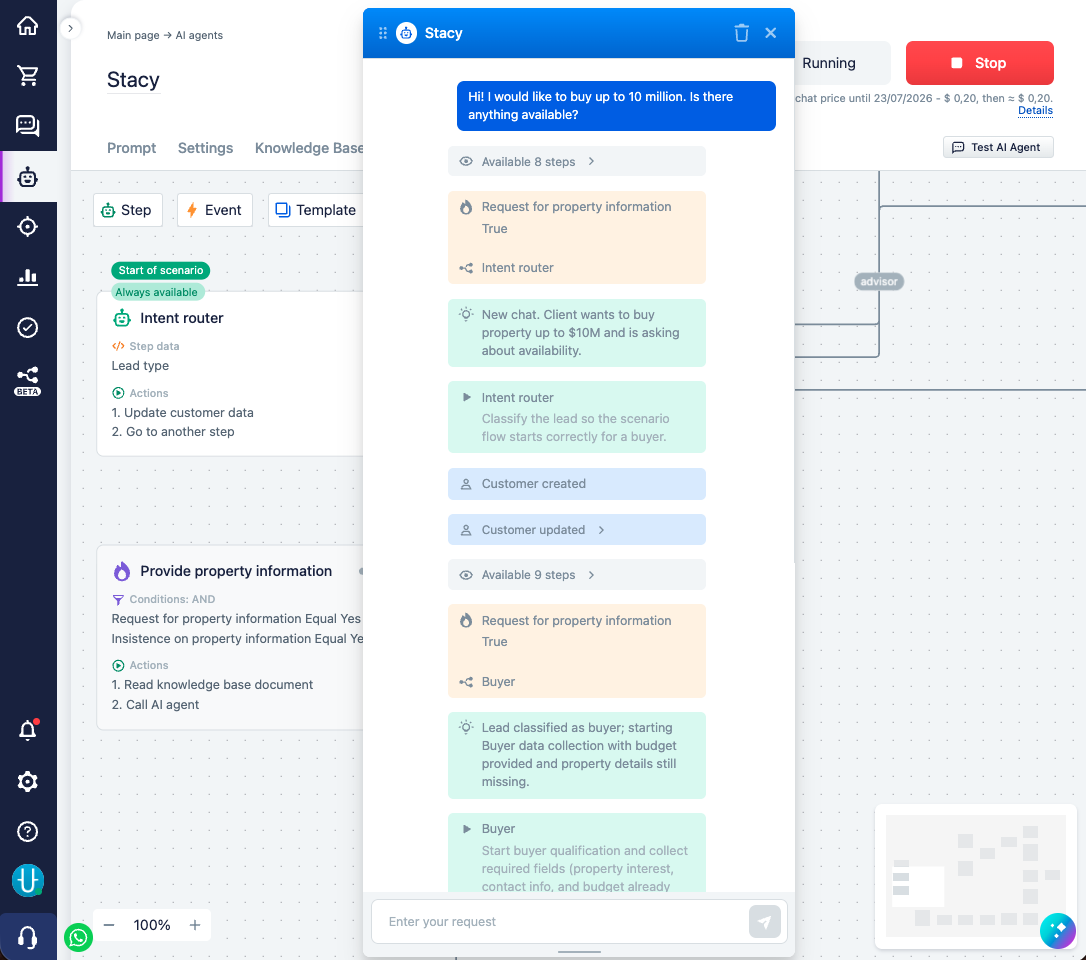
In a regular chat, only the messages are visible — the client's messages and the agent's replies. Everything that happens between them is hidden. The test chat shows this hidden "kitchen": which steps were available to the agent, what it reasoned about, which steps it decided to call and why, what the system returned to it, the saved data, what errors arose, and why it eventually stopped.
This is debugging. Most configuration problems are solved not by guessing but by reading this data: most often it turns out that the agent behaved quite logically — simply based on what was available to it and how it understood the situation.
One reply is several iterations
Before breaking down the blocks, it is important to understand how the agent works. A single reply to the client is not one action but a cycle of several iterations. On each iteration, the agent looks at which steps are available to it right now and what has already been collected, decides which steps to call, the system runs them and returns the result — and so on in a circle, until the agent decides to stop: reply to the client or finish the work. The cycle itself is described in detail in the The agent's work cycle section.
The test chat shows each iteration in turn, block by block. So after a single message from you, a lot of data is shown — this is normal: you see the whole course of the agent's work, not just the final reply. Most blocks can be expanded (the ">" icon) to see the details.
Data blocks in the test chat
The blocks appear in the chat gradually, as the agent works. Within one iteration they usually fall into place like this:
- Steps started by an event — an orange block of two lines: at the top, with a lightning icon, the event that fired ("Message from customer", "Dialog assignment", etc.), and below, with a branching icon, the step this event started. Such steps usually run before the agent itself.
- Available steps — a grey block "Available N steps". The list of steps the agent can call on this iteration, taking into account their visibility, trigger conditions, and event type. This is the first thing worth checking: if the needed step is not in the list, the agent physically cannot call it, no matter how well the prompt is written. The reason is almost always in the step's conditions or visibility (see Conditions).
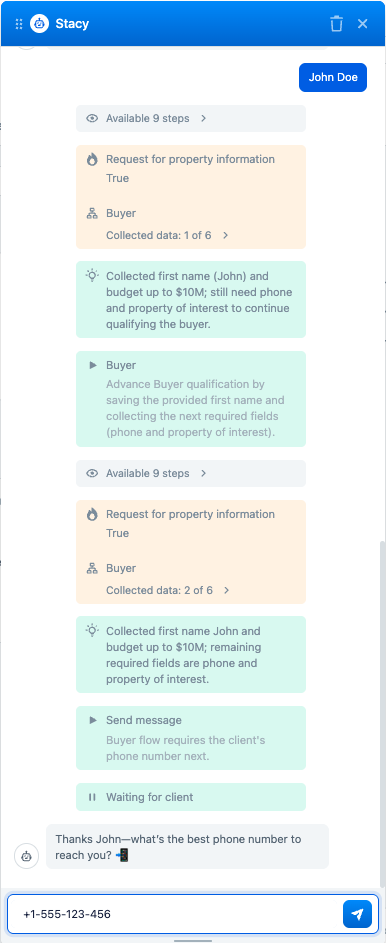
- Tasks from the dashboard — orange blocks. The current state the system highlights for the agent: which scenario step it is currently working on, how much data has been collected for the step ("Collected data: 1 of 6" — that is, how many of the required fields are filled in), the values of the set signals, and the accumulated context. In essence, this is what the system directs the agent with — if a task is set incorrectly, the agent may behave unpredictably. For more details, see Work dashboard.
- The agent's reasoning — a green block with a lightbulb icon. The agent describes in its own words how it understood the situation before acting. These are its "thoughts out loud" and a valuable block for debugging: it directly shows why the agent is about to act one way and not another.
- The steps the agent decided to call — green blocks with a play icon. Each block is one step the agent chose, with an explanation of why it is calling it and with the data it passes (for example, exactly what to save to the card). In one iteration the agent can call several steps — then there will be several blocks in a row.
- Execution result — after the steps have run, the system shows the step's completion status ("Completed" or "Incomplete") and what it actually did and returned to the agent: for example, "Successfully saved customer data to CRM", a created or updated order, scheduled reminders, or a list of the still-missing required fields. It is this result that the agent receives as input on the next iteration and relies on further.
- Errors — highlighted blocks. If a step did not run or the model returned an incorrect response, this is shown as a separate block with the step name and the error text.
- Reason for stopping — a block with a pause icon. At the end, the agent shows why it finished the iterations: waiting for client — it replied or asked a question and is waiting for the client's reaction; work completed — the task is done and no reply is expected (for example, the dialog was handed over to a manager or closed); continuing work — it has not finished yet and is moving to the next iteration.
After all these blocks comes the agent's message to the client itself — the only thing the client would see in a real chat.
Test constantly
The test chat is free for a reason — it is meant to be used constantly. Check any change in the agent right away: made an edit — ran the scenario — looked at what changed.
One check is not enough. The agent runs on an LLM, so its responses are not strictly deterministic: it may behave differently across runs to the same message. If the agent answered correctly once, that is no guarantee it will always answer that way. So run important scenarios several times, resetting the conversation, and watch how stable the behaviour is. It is this stability that you check before launching a version on real clients (see Agent versions and statuses).
How to read the chat when something goes wrong
When the agent behaves not as you expected, the answer is almost always already in the test chat:
- Check the available steps. If the agent "did not do" what you configured, look at whether the needed step was in the list of available ones. If it is not there, the matter is not with the agent but with the step's conditions, visibility, or event type.
- Read the agent's reasoning. The green "thoughts" blocks show how the agent understood the situation. Often it turns out that it reasoned logically — just based not on the picture you had in mind. This immediately suggests what to fix in the prompt or scenario.
- Check the tasks in the dashboard. If the agent collects the wrong data or goes down the wrong step, look at which tasks it had. An incorrectly set task is a frequent cause of "wrong" behaviour.